When one person answers twice, your counts drift and a reviewer starts asking questions. David, who is running a questionnaire for his thesis, needs every student counted once, and he needs to explain in his methods chapter how he made sure of that. PingPolls gives him a few checks that run before a response is accepted, so duplicates are refused at the door instead of being cleaned out of a spreadsheet later.
By default, every form already allows one response per browser. When a respondent opens the form again after submitting, they see their earlier result instead of a fresh form. The settings below let you tighten or relax that.
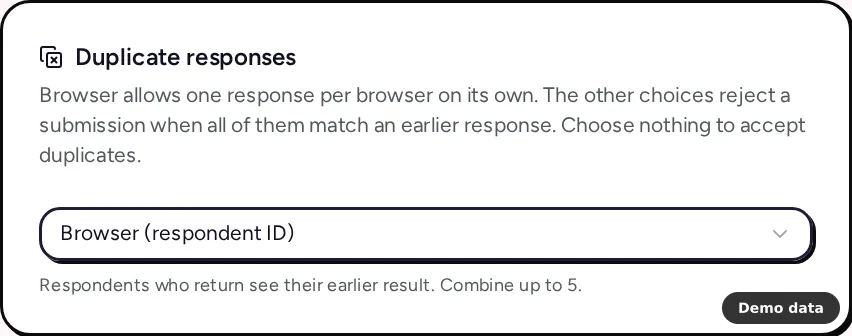
How to set duplicate checks
- Open your form from Forms and go to the Settings tab. Only the form owner can change these settings.
- In the Duplicate responses card, open the list and choose what to match. You can pick from three groups.
- Respondent: Browser (respondent ID), Network (IP address) and Verified email.
- Answer to: a short text, email, link, phone or number question in your form.
- Custom field: any of your custom fields.
- Combine up to 5 parts. A submission is refused only when all the parts you chose match an earlier response.
- Click Save settings.
A few details are worth knowing before you choose.
- Network (IP address) treats everyone on the same network, like an office or a school, as one respondent. That can block classmates who answer from the same campus Wi-Fi.
- Emails are compared without case or spaces, and phone numbers are compared in international format, so the same number typed in a different style still counts as one.
- If you match on a question that respondents may skip, they can't submit while it's chosen, and the card names those questions.
- When a duplicate is caught, the respondent sees "A matching response has already been submitted" and no response from your quota is used.
To accept repeat answers instead (for a sign-up sheet or a daily check-in), clear every choice so the list reads Accept duplicates. Respondents can then submit each time they open the link, and their result shows once after each submission.
How to ask respondents to verify their email
Verified sign-in (Pro and Teams) asks respondents to sign in with Google or GitHub before they answer, and binds that verified email to their response. There are two ways to turn it on.
- In the studio, open an email question's Question settings and switch on Use verified email. The answer is filled with the sign-in email and locked.
- In the Duplicate responses card, choose Verified email. Respondents will sign in to verify their email once you save.
Respondents then see "Verify your email to continue" with Continue with Google and Continue with GitHub buttons. For David, matching on verified email means one response per student account rather than one per laptop.
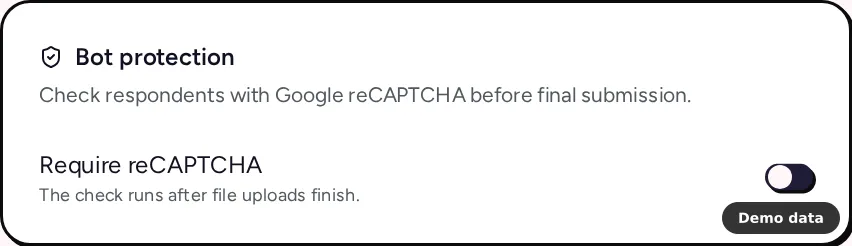
How to turn on reCAPTCHA
Every form already has two quiet protections that are always on, a hidden honeypot field and a single-use code that expires after 10 minutes. For more, the Bot protection card adds Google reCAPTCHA on any plan.
- In the Settings tab, find the Bot protection card ("Check respondents with Google reCAPTCHA before final submission") and turn its switch on.
- Click Save settings.
The reCAPTCHA check runs when the respondent submits (after any file uploads finish), never when the form opens, and Google's script loads only at that moment. A submission with a low reCAPTCHA score is blocked. Each respondent gets up to 5 checks and each network up to 30 every 10 minutes, and a pass is reused for 5 minutes.
Frequently asked questions
Do duplicate checks need a paid plan?
No. Browser, network, answer and custom-field checks work on every plan. Only Verified email needs verified sign-in, which comes with Pro and Teams. On Free, picking it opens the upgrade dialog instead.
Can I limit who opens the form, not just who submits?
Yes. A password-protected form asks for a password before anything shows (Pro and Teams). You can also set a close time in form settings.
Does Certiscore™ catch duplicates or bots?
No. These checks decide who can submit. Certiscore is a confidence signal that shows how sure respondents were about their picks once they did, and it can't tell a person from a program.
