David is collecting answers for his thesis, and his supervisor wants a clean dataset with a clear cut-off date. That means the questionnaire has to stop taking answers when data collection ends, and the same person shouldn't be able to submit twice. Both are settings in PingPolls, so David sets them once on the live form and doesn't have to watch the clock or clean duplicates out of his spreadsheet later.
Settings change how a form behaves, not what it asks. Changes in the form overview apply to the live form as soon as you save and are copied into the studio draft, so your next publish keeps them.
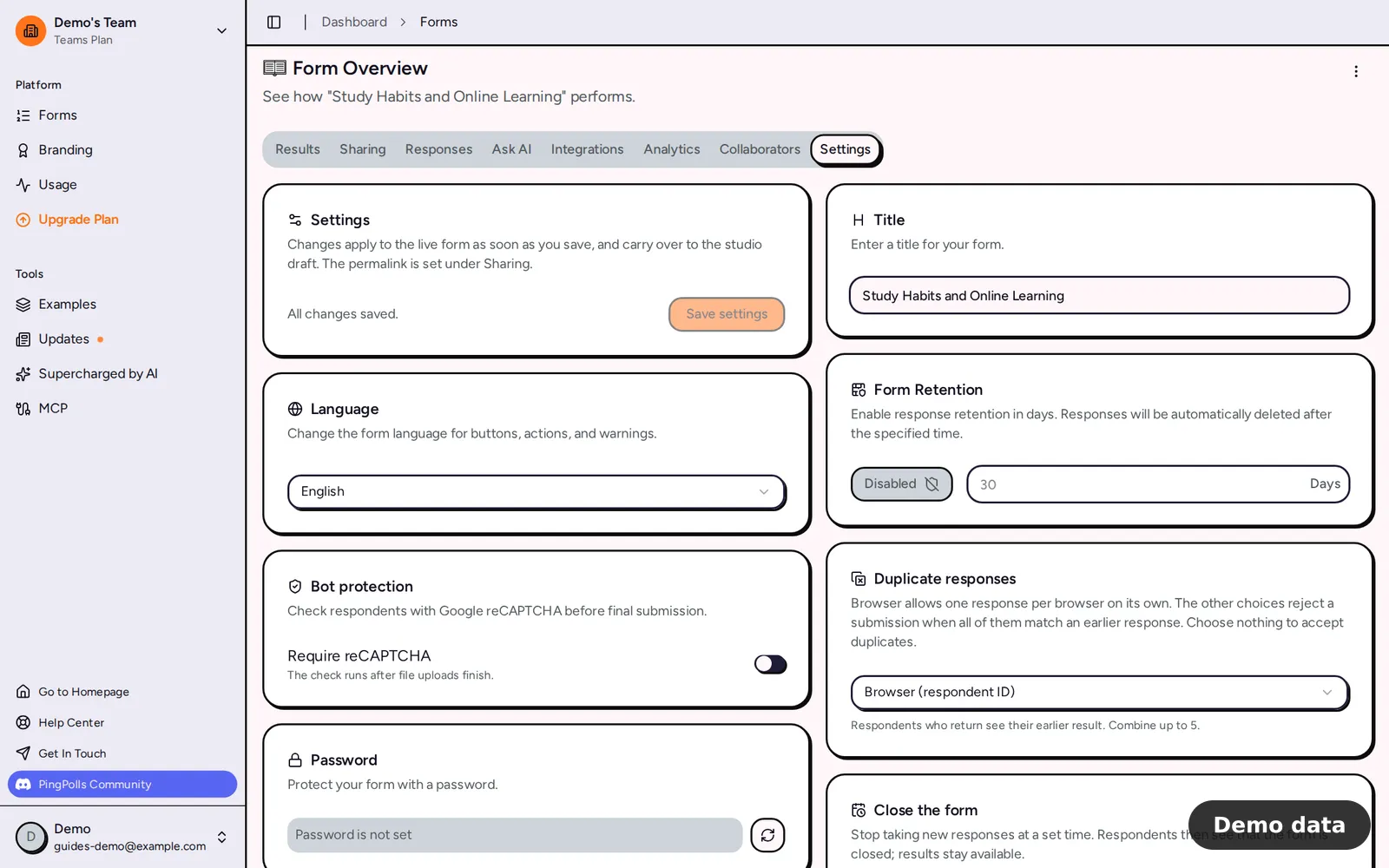
How to change form settings
- Open Forms and click your published form to open its overview.
- Go to the Settings tab.
- Change what you need on the cards described below. The top card says "You have unsaved changes." while anything is pending.
- Click Save settings. You'll see "Settings saved", and the change is live.
A few of these settings are also in the studio. Click Form Setup (the cog icon) and open the Settings tab to change the title, language, retention, permalink, password and reCAPTCHA while you edit a draft. Settings can't be saved while the AI is working on the form.
What each setting does
- Title is the form's name, 3 to 64 characters.
- Language sets the language of everything PingPolls shows respondents, in one of 12 languages. See Form languages.
- Close the form stops new responses at a date and time you pick. Times come in half-hour steps in your own time zone, and picking only a date closes the form at 23:59. After that, the form still opens and tells visitors it isn't accepting responses, and submitted results stay readable. Keep open clears the closing time.
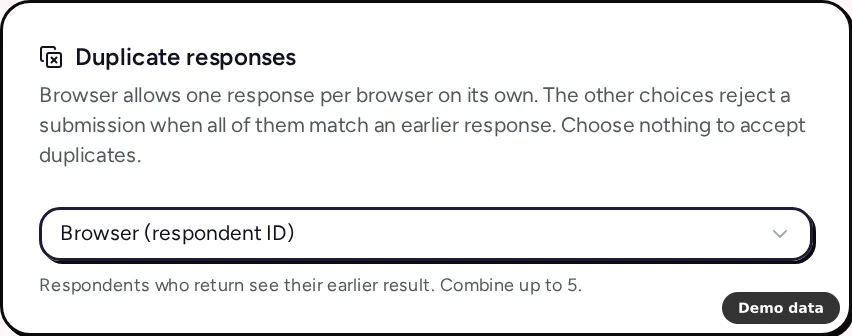
- Duplicate responses allows one response per browser by default. On top of that, you can add a check built from network (IP address), verified email, the answer to a short text, email, link, phone or number question, or a custom field, combining up to 5 parts. A submission is rejected when all of those parts match an earlier response. Choosing nothing accepts duplicates and lets people submit again. Prevent duplicate responses and spam covers the options in depth.
- Bot protection adds reCAPTCHA to the form when you switch on Require reCAPTCHA. It works on every plan.
- Password asks respondents for a generated 7-character password before they can open the form (Pro and Teams). See Password-protected form.
- Partial responses saves answers on our servers while people fill in the form, so you can see where they stopped (Pro and Teams). See Partial responses.
- Result email emails respondents a link to their result, sent to the answer of an email question in your form (Pro and Teams).
- Form Retention deletes responses a set number of days after they were last saved (Teams). See Data retention.
David picks a matching rule with care. Matching by network sounds strict, but everyone on the same campus Wi-Fi shares an address, and PingPolls warns that respondents sharing a network, like an office or school, count as one. So he keeps the default one response per browser and adds his student ID question as a second check.
Who can change what
Everyone with access to the form can change the title and language. The rest belongs to the form owner (or the team owner). Collaborators see a note that retention, duplicate checks, password, bot protection, closing time, partial responses and result emails are managed by the form owner.
Plan notes
On a plan that doesn't include a feature, the card shows an upgrade button, and saving turns that setting off instead of failing. If a paid plan lapses, partial responses, retention and the result email are switched off the next time settings are saved.
Frequently asked questions
Can I reopen a form after it closes?
Yes. Click Keep open on the Close the form card, or pick a later time, and save.
Why can't someone submit after I added a duplicate check?
When a check uses a question's answer, a respondent who skips that question can't submit. Make that question required, or choose a different check.
Does changing settings require publishing again?
No. Settings saved in the overview apply to the live form right away. Settings changed in the studio drawer are part of your draft and go live with your next publish.
