When Bagas puts a QR code in every package, the buyer scanning it has just opened a box from his brand. If the form that loads looks like a generic survey, it feels like a detour, and people close it. When it carries the same colors, font and logo as the packaging, it feels like the brand asking, so more buyers stay to answer. PingPolls lets you set that look per form and save it for your whole team.
Colors, font and style are free on every plan. Your own logo and the image people see when the link is shared are part of Pro and Teams.
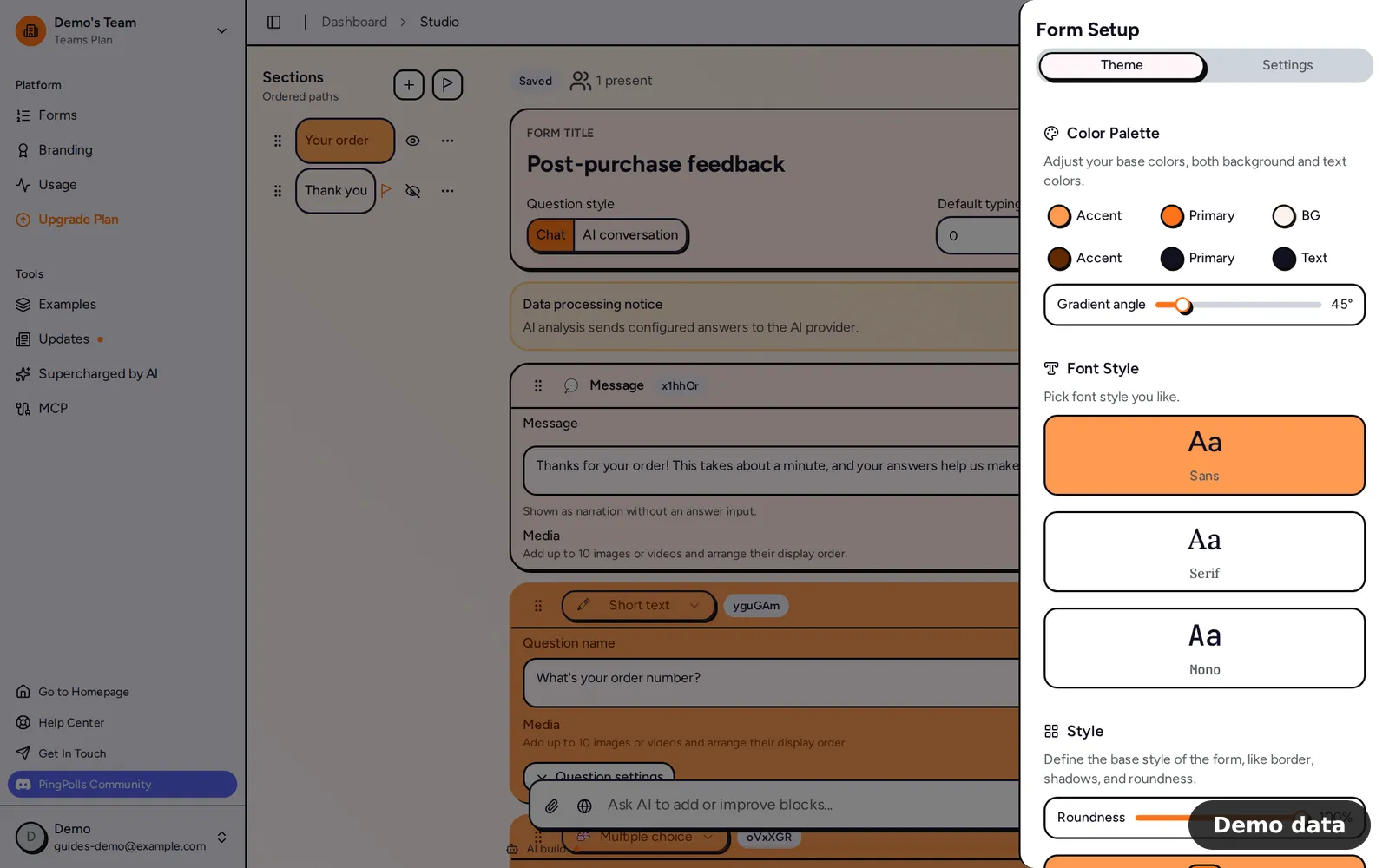
How to customize your form
- Open the form in the studio and click Form Setup (the cog icon in the top bar). The drawer opens on the Theme tab.
- In Color Palette, set your primary and accent colors with their text colors, the background (two colors make a gradient, with an angle you choose) and the main text color. Colors take full six-digit hex codes such as #1F6F5C.
- In Font Style, pick sans, serif or mono.
- In Style, choose one of three base looks (the PingPolls default, Elegant or Material) and set Roundness for the corners.
- In Background, choose Disabled, Enabled or Custom. Custom lets you upload an image and set its Image opacity, so the questions stay readable on top of it.
- In Form Logo, keep the default PingPolls mark, choose No Logo, or choose Custom and upload yours. A custom logo shows on Pro and Teams.
- In Social Preview, upload the image people see when your link is shared in chats and social posts. We recommend 1200 by 771 pixels, and this needs Pro or Teams.
- Click Preview to check the result, then publish. Theme changes are saved to your draft, so respondents see them after you publish.
Choose how questions appear
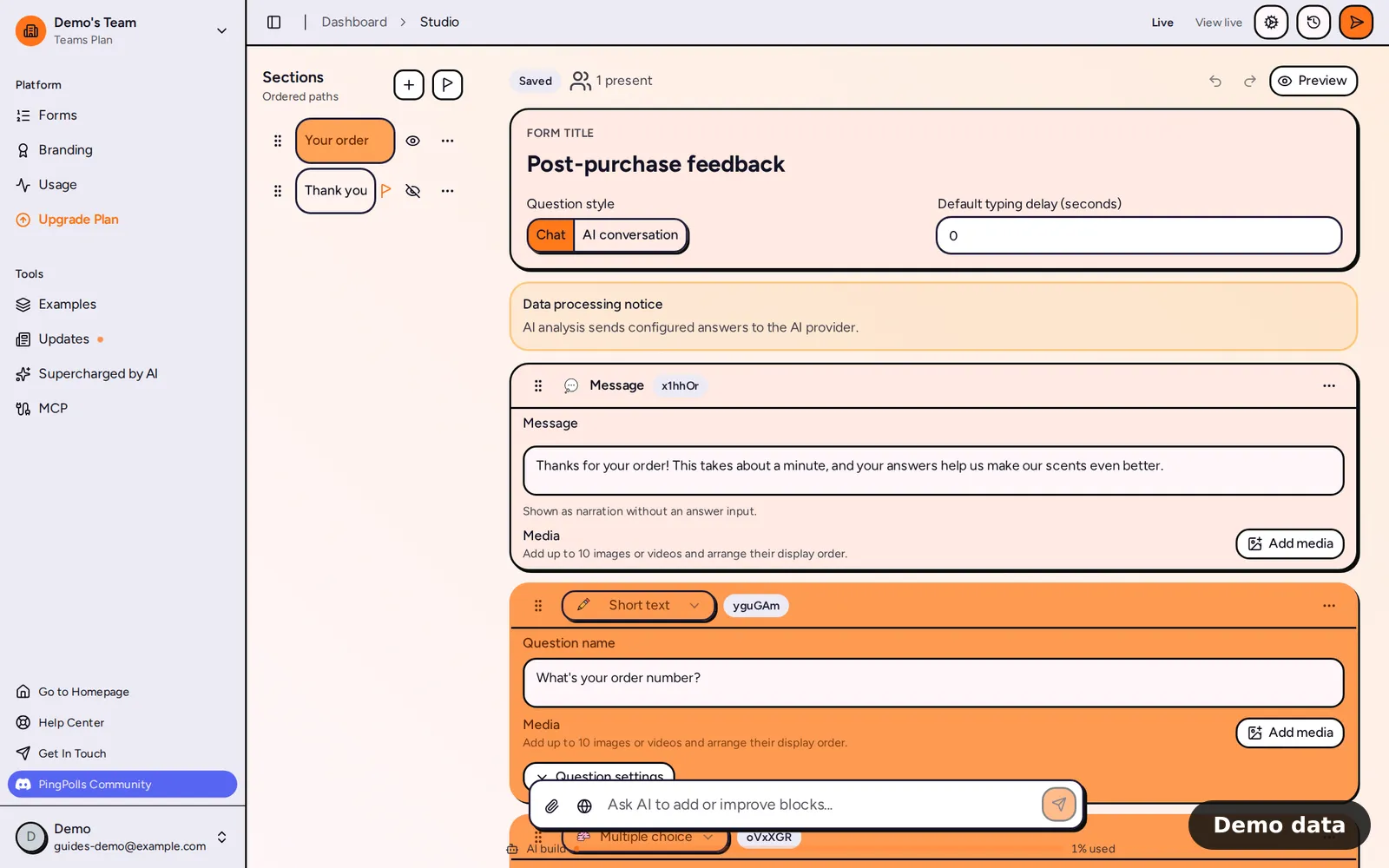
The form card at the top of the studio has a Question style switch. Chat shows each question as a message bubble after a short typing pause, and AI conversation shows a typing indicator and then streams the text in at about 20 words per second, which feels like someone writing back. Next to it, Default typing delay (seconds) sets the pause before each question, from 0 to 3 seconds in steps of 0.1. Bagas keeps it short, because buyers scanning a package want to start right away.
Save it as your team theme
Two buttons sit at the bottom of the Theme tab:
- Default resets this form to your team's saved theme, which is handy after copying a template that came with its own look.
- Set globally saves this form's theme as the team theme, so every new form starts with it. Only the team owner can do this.
You can also set the team theme on the Brand Kit page, which adds a default question style and typing delay, with Save Theme and Reset Theme buttons. Existing forms keep their own theme, so changing the Brand Kit only affects forms you create afterwards.
Plan notes
- Colors, font, style, roundness, background and question style work on every plan.
- On Free, published forms always show the "Made with PingPolls" mark, whatever logo you saved. Remove PingPolls branding explains what Pro and Teams change.
- A new social preview image needs an active Pro or Teams plan. If the plan lapses, your saved image is kept, but shared links show the default PingPolls image until the plan is active again.
- To serve the form from your own address, see Custom domains.
Frequently asked questions
Does the theme change the language of the form?
No. The buttons and messages respondents see follow the form's language setting, which you change in Form languages.
Will changing my team theme restyle forms I already published?
No. Every new form copies the team theme once when it's created, and existing forms keep their own. To bring an older form in line, open it and click Default on the Theme tab, then publish.
Can I style the QR code to match too?
Yes. The QR code on the Sharing tab has its own colors and shapes. Share your form and QR code walks through it.
