Rina sells lip tints, and her followers keep asking the same question in her comments, which is "which shade suits me?". A short quiz answers it for them, but only if the end of the quiz shows a real recommendation instead of a plain "thanks". With a result page in PingPolls, someone with warm undertones who likes a natural finish sees the shade made for them, with a photo and a line about why it fits, and Rina learns which shades her audience leans towards along the way.
A result page is a special section that respondents only see after they submit. You can add several results, and the form's logic decides which one each person gets, so one form can end in as many personal outcomes as you need. If you're building a full quiz, How to create a product quiz walks through it from the first question.
How to add a result page
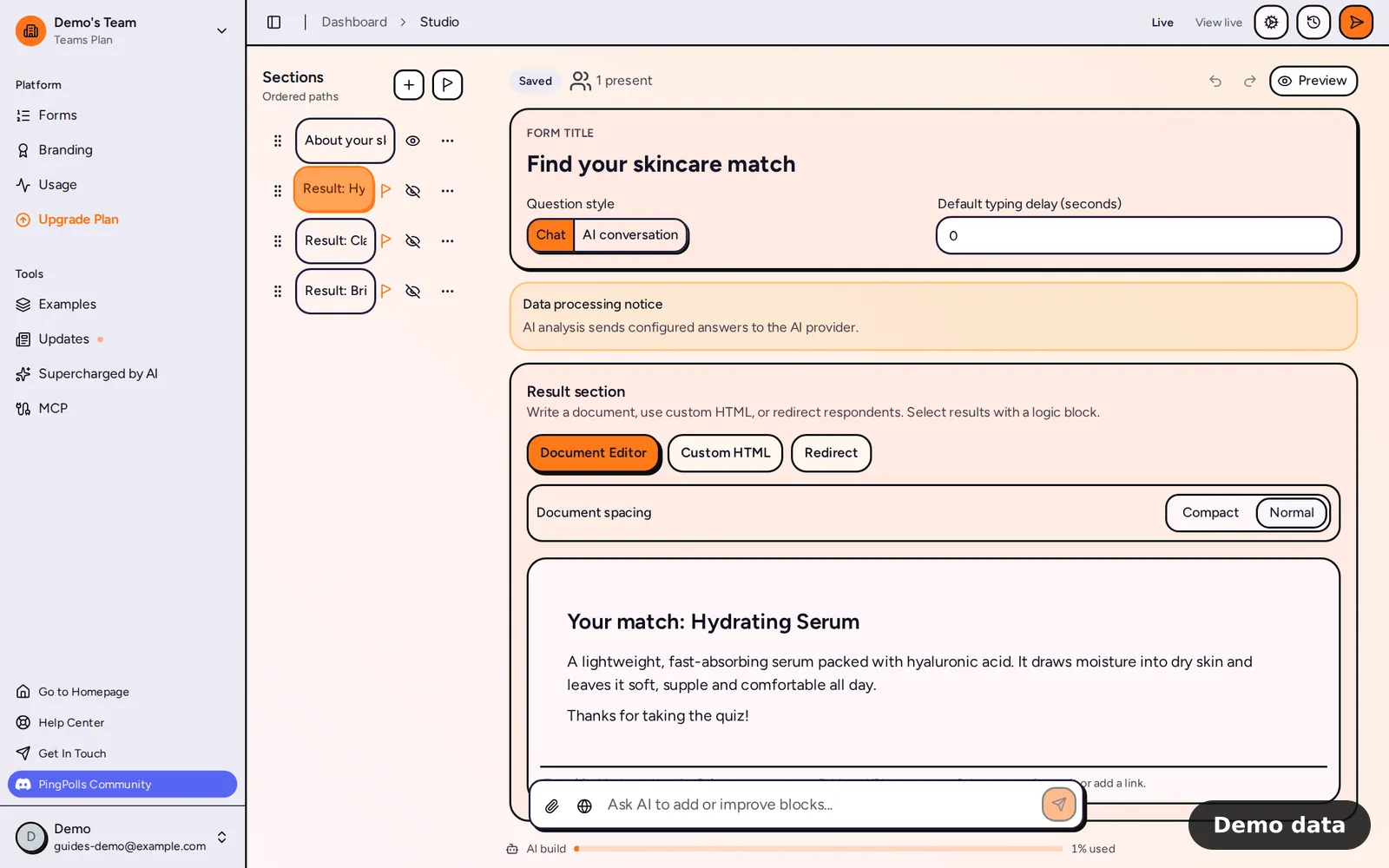
- Open your form in the studio. In the Sections panel on the left, click the flag button (Add result section). A new result section appears and opens in the Document Editor.
- Rename the section so you can tell results apart later, for example "Warm and natural".
- Write the result. Type / to add headings, lists, a table, uploaded media, or an image or video from a URL. Type @ to open Dynamic values and insert an answer, such as the respondent's name or the finish they picked.
- Repeat for every outcome you want. If a result should only appear when a rule picks it, hide it with the eye button in the section list.
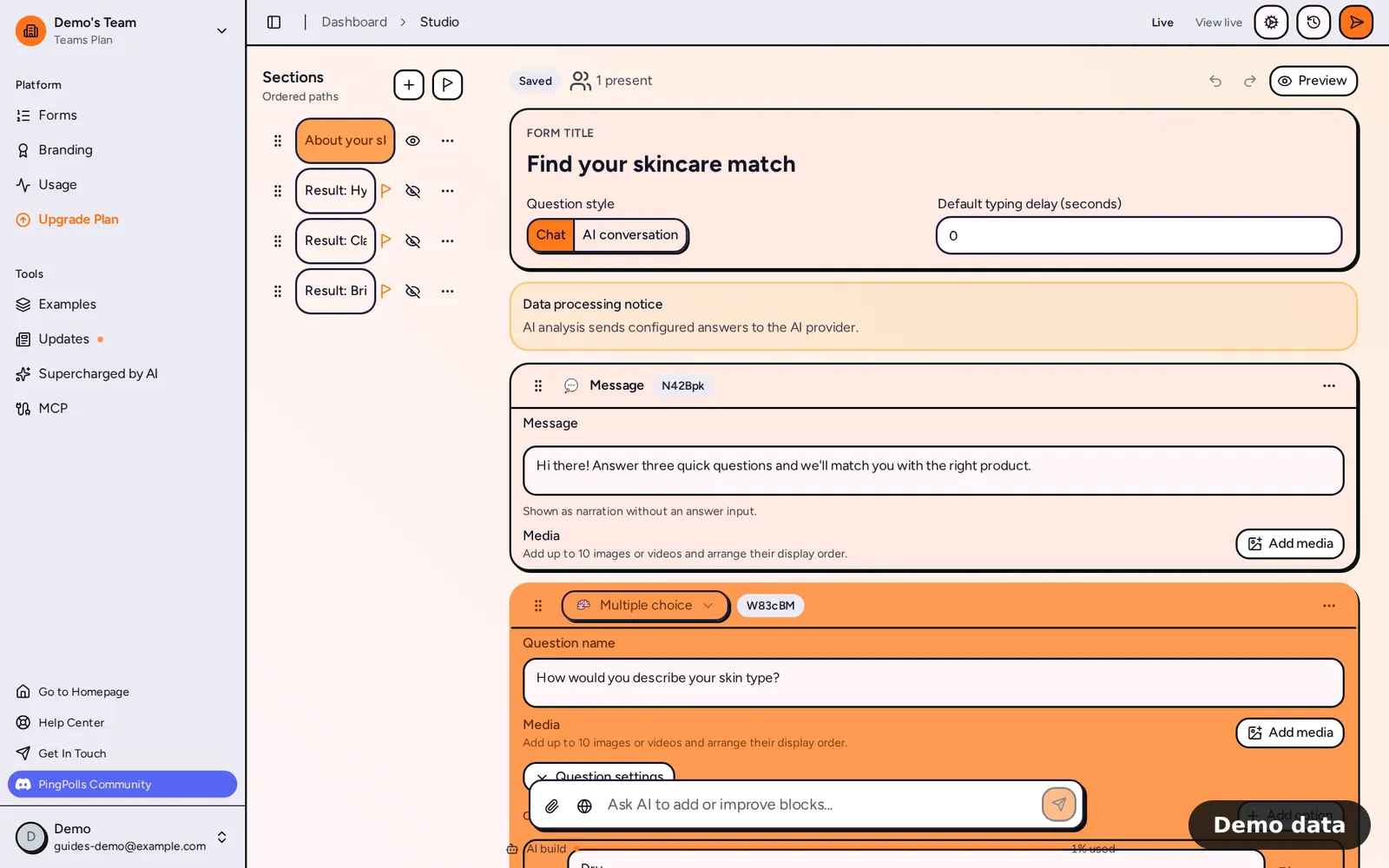
- Go back to your question section, click Add block, and choose Logic. Under If, add conditions on earlier answers, for example "Undertone is Warm" and "Finish is Natural" with All conditions.
- Under Do, choose Set Result and pick the result section. Add one logic block per result.
- Click Preview and submit the form to check which result you land on.
Conditional logic explains conditions and operators in detail, and Calculated custom fields shows how to add up scores when a quiz needs points instead of simple matches.
How PingPolls picks the result
Rules are checked in order, and the last matching Set Result wins. If no rule matches, the respondent sees the first visible result, which makes a visible result a handy default. Hidden results only show when a rule selects them. When every result is hidden or there are none, respondents see a short default thank-you message in the form's language. A Go to section now or Set next section after finishing action that points at a result section also selects it.
Three ways to build a result
A result section has three tabs, and switching between them keeps what you wrote in the others.
- Document Editor gives you rich text with headings, lists, tables, quotes, code and images. YouTube and Vimeo links play inside the page in their privacy modes, so they don't set tracking cookies. The text can be up to 65,536 characters.
- Custom HTML takes your own HTML (up to 65,536 characters) and CSS (up to 32,768). PingPolls cleans the HTML and checks the CSS against a strict rule set, and if any CSS rule breaks those rules the whole stylesheet is dropped. Toggle Preview to see it with sample values.
- Redirect sends respondents to a URL of up to 2,048 characters, which must be http or https. You can put answers in the URL with @, so Rina could send each person to the matching product page with their shade already in the address. If the result also has text, respondents see a Continue button that opens the link in a new tab.
Limits and plan notes
- Result pages and Set Result logic work on every plan.
- The "Made with PingPolls" mark shows on the result page unless your team has branding on Pro or Teams (see Remove PingPolls branding). On Free, the default thank-you message also shows a "Create a form like this on PingPolls" button.
- Respondents can come back to their result for 24 hours on the same browser. With the result email on (Pro and Teams), they also get an email link that works for 7 days. You set that up in Form settings.
- In the studio preview, redirects are only simulated, so you can test without leaving the editor.
Frequently asked questions
What happens if a respondent opens the form again after submitting?
They're taken back to their result. Forms that allow resubmitting are the exception, because there the result shows once and reopening it starts a new response.
Can I change a result after the form is live?
Yes. Edit the result section in the studio and click Publish updates, because changes stay in your draft until you publish.
Can I stop someone's result link from working?
Yes. As the form owner you can revoke result links for a single response, and that link stops working.
