Say you're Rina, and you have three lip tint shades on the table but only want to send one to the factory. Before you pay for a production run, you want your followers and past buyers to tell you which shade they would actually buy. A short form gets you that answer, and this guide walks you from an empty dashboard to a published link you can drop into your bio or stories.
Everything starts on the Forms page, where you can begin from a blank form, from a description the AI turns into questions, or from a ready-made template. Whichever start you pick, you end up in the same editor (we call it the studio), so you can change anything before a single person sees it.
How to create a form
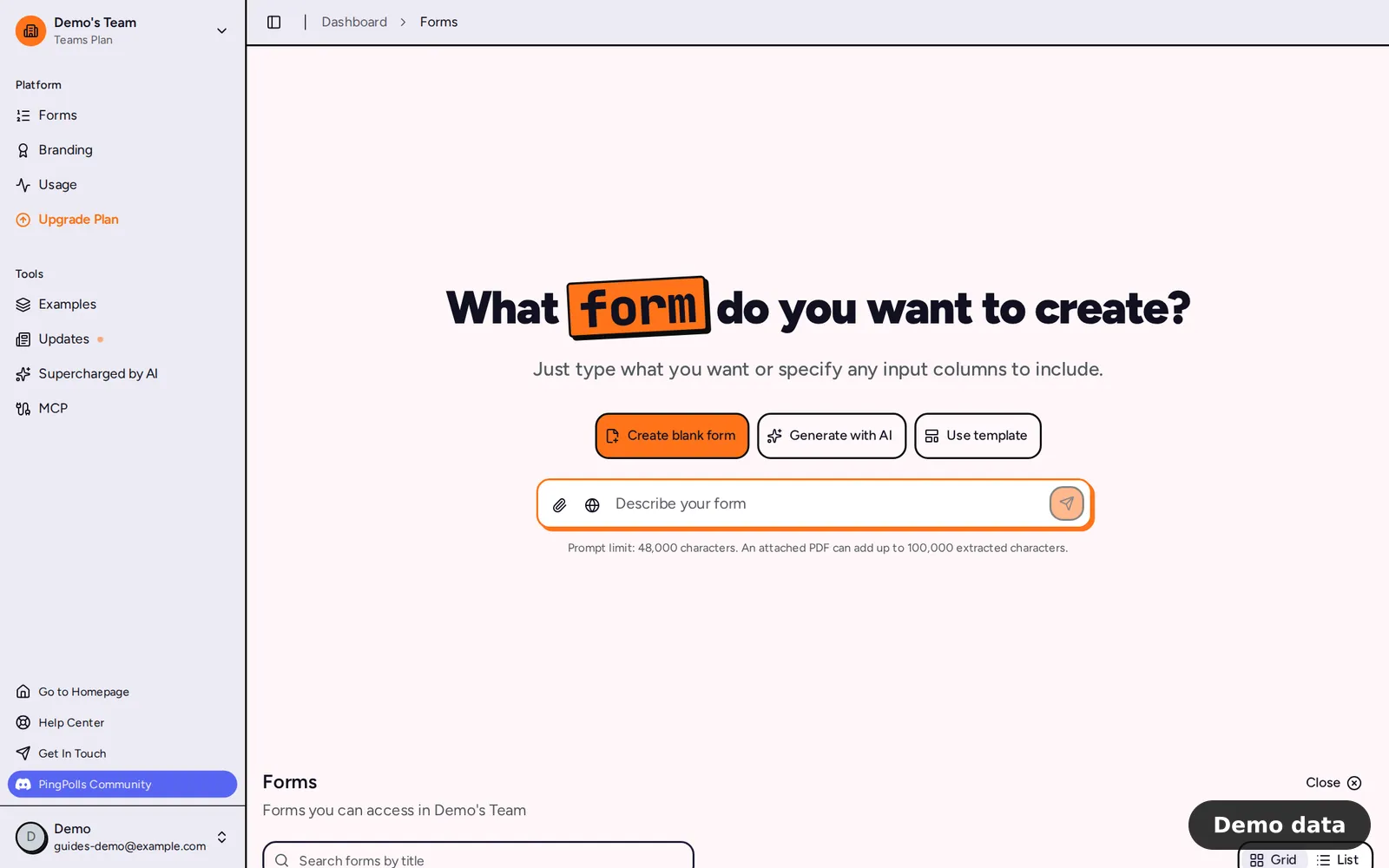
- Open Forms. On your first visit the page leads with the "Describe your form" box. If you already have forms, click New Form at the top of the list to show the same options.
- Pick how you want to start. Create blank form opens an empty form, Generate with AI lets you describe the form in plain words (see Build a form with AI), and Use template shows the newest templates (see Start from a template).
- If you chose blank, the studio opens with a form called "Untitled Form" and one section. Click the title in the form card at the top and rename it, for example "Which shade should we make?", because the title needs 3 to 64 characters before you can publish.
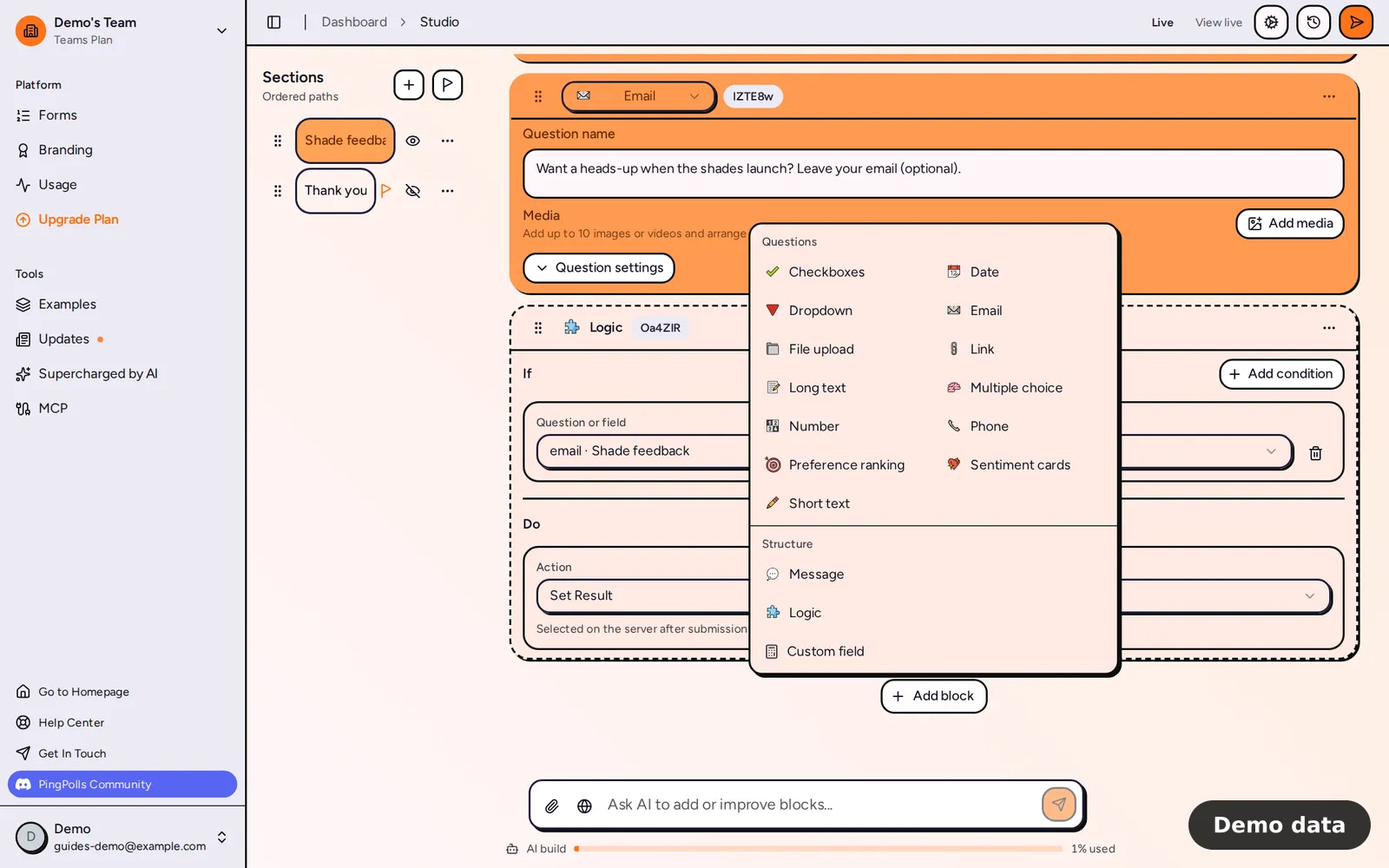
- Click Add block to add your first question. The menu has two parts. Questions lists all 13 question types, such as Multiple choice, Preference ranking and Sentiment cards, and Structure holds Message, Logic and Custom field. The question types guide explains when each one fits.
- Type your question text and options right in the card. Open the question's settings to make it required, set a field name for exports, or switch on AI analysis.
- Click Preview to answer the form the way your followers will. The preview uses your real theme, and nothing you enter is recorded.
- When it reads right, click the publish button (the paper plane in the top bar). The dialog asks "Publish form?", and Publish makes it live.
After publishing, PingPolls opens the form overview on its Sharing tab. That is where your link, embed code and a QR code wait for you, so you can post the link straight away. Share your form and QR code covers each option.
Your work saves itself
The studio saves your draft about a second and a half after you stop typing, and the badge above the form reads "Saved" once it's done. Edits only change the draft, so a form that is already live keeps showing the published version until you publish again. That means you can fix a typo or add a question without anyone catching you halfway (we've all been there). The full story is in Drafts, publishing and version history.
To make the form look like your brand, open Form Setup (the cog icon) and use the Theme tab. Customize your form goes through colors, fonts and logos.
What PingPolls checks before publishing
Publishing runs a few checks so respondents never land on a broken form. If one fails, you see a message that names the problem:
- The title is 3 to 64 characters long.
- At least one visible question or message can be reached.
- Every visible section can be reached.
- Every logic block has exactly one action in its Do part.
Plan notes
Creating and publishing forms works on every plan, and so do logic and custom fields. What changes between plans is how many responses you collect each month: 100 on Free, 2,000 on Pro and 10,000 on Teams.
Frequently asked questions
Can I copy a form I already made?
Yes. Open the form's menu on the Forms page and choose Duplicate. The copy is a draft called "Copy of …" with all your questions and logic, and it leaves out responses, collaborators, prefill links, the permalink and the password.
Can I edit a form after it's published?
Yes. Open it in the studio, make your changes and publish again. The button then reads Publish updates, and respondents keep seeing the old version until you click it.
Can my teammates build the form with me?
Several people can edit the same draft at once, and the studio shows how many are present. Adding collaborators to a form is part of the Teams plan.
How do I take a form offline?
On the Sharing tab, turn off every channel and save. The form becomes archived and its links stop working until you turn a channel back on.
