Halfway through David's data collection, his supervisor asks him to reword two questions and add one more. David's worry is obvious, because respondents are filling in the questionnaire right now and he can't have them land on a half-edited form. In PingPolls that can't happen, because every edit goes into a draft and the live form only changes when he publishes. And if the reworded version turns out worse, he can bring back the earlier one from the version history.
That split between the draft and the live form is the whole idea of this page. You can edit as much as you like, test it in Preview, and publish once, while respondents keep seeing the version they started with.
How drafts and publishing work
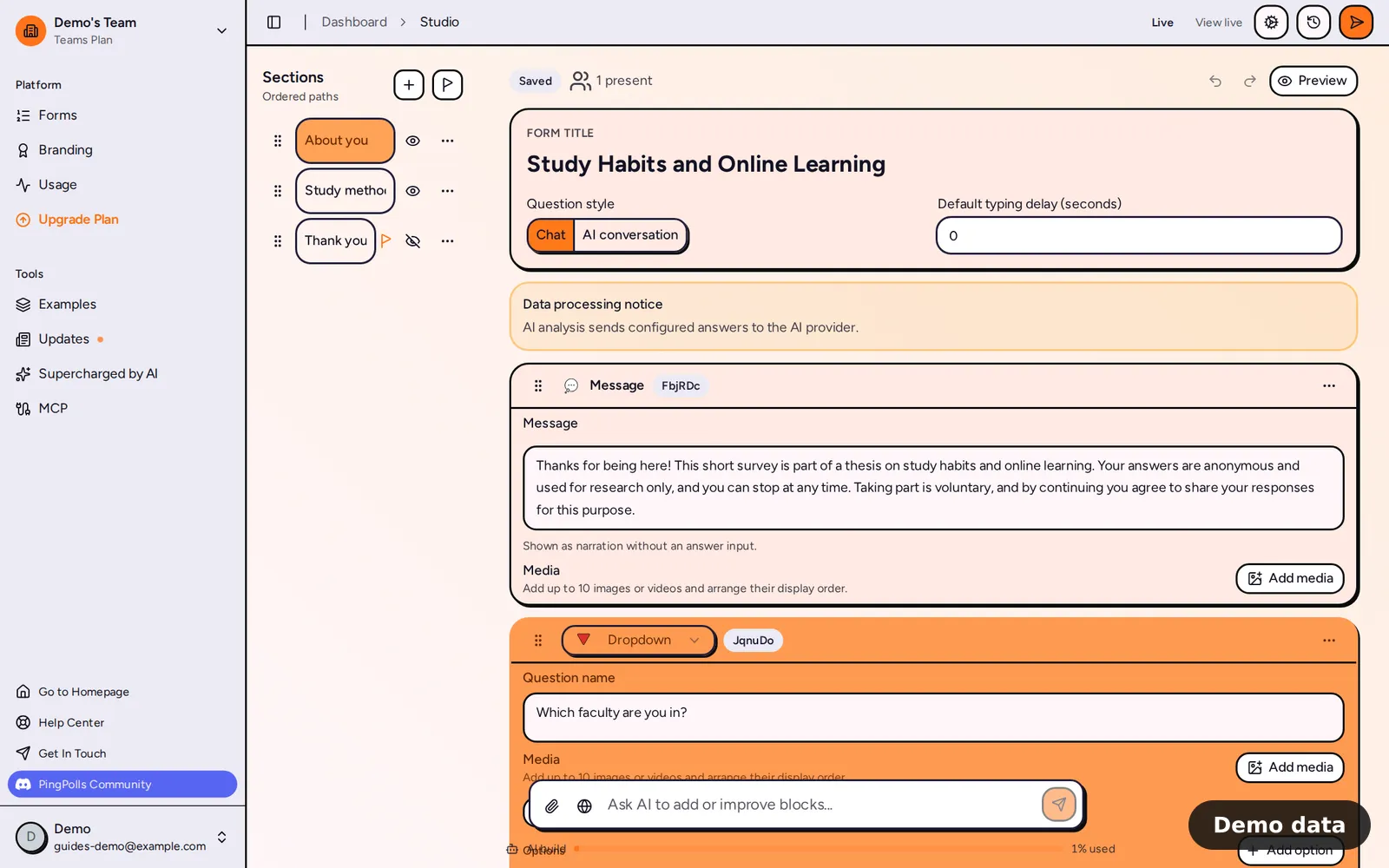
- Open the form in the studio and edit it. The draft saves itself about a second and a half after your last change, and the badge above the form shows "Saving" and then "Saved".
- While the draft differs from the live form, the top bar shows an Unpublished changes badge next to a View live link, so you can compare the two. When they match, the badge reads Live.
- When you're ready, click the publish button (the paper plane). For a live form, the dialog asks "Publish changes?" and explains that the new version replaces the one respondents see at the same link.
- Click Publish updates. PingPolls checks the draft, saves it as a new published version and opens the form overview on its Sharing tab.
If you publish without having changed anything, nothing happens. The first time you publish a form, the dialog reads "Publish form?" instead, as described in Create your first form.
How to restore an earlier version
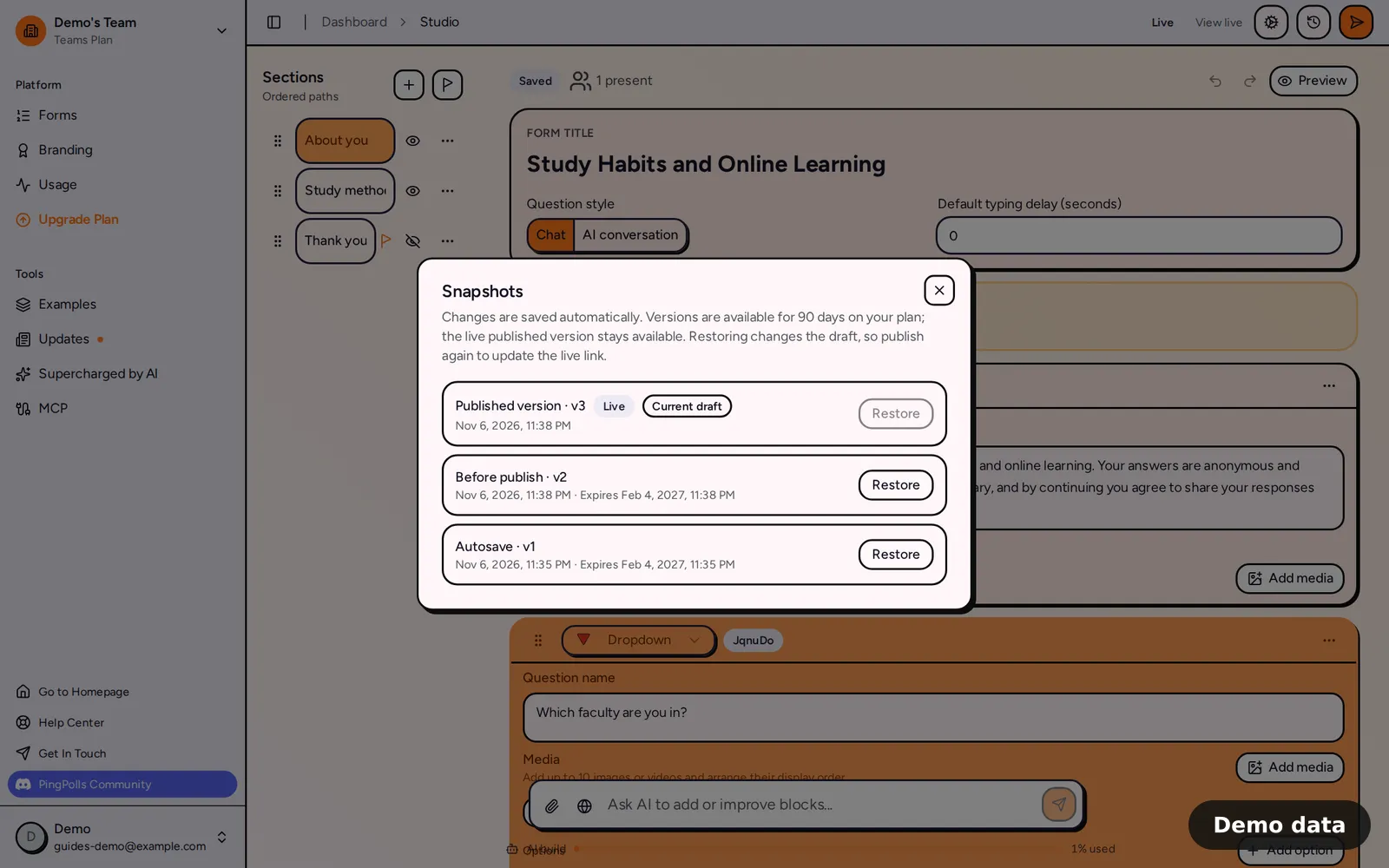
- In the studio, click Snapshots (the clock icon in the top bar).
- Find the version you want. Each one is labelled Published version, Autosave, Before publish or Before restore, with its version number, the date and, for autosaves, when it expires. The live version carries a Live badge and your current draft a Current draft badge.
- Click Restore on that version. Your draft moves back to it, and you'll see "Snapshot restored. Publish updates to change the live form."
- Check it in Preview, then publish to make it live.
Restoring only changes the draft, so the live form stays exactly as it was until you publish. That makes restoring safe to try, because nothing reaches respondents until you say so.
How long versions are kept
Published versions are kept for good. Autosaves expire after a number of days that depends on your plan:
| Free | Pro | Teams | |
|---|---|---|---|
| Autosaves kept for | 7 days | 30 days | 90 days |
Autosaves made within 10 minutes of each other are merged into one, so the list stays readable. The Snapshots dialog shows up to 50 versions.
Checks before a version goes live
PingPolls checks every draft before publishing, so a broken version never replaces a working one. The title needs 3 to 64 characters, at least one visible question or message has to be reachable, every visible section has to be reachable, and every logic block needs exactly one action. If a check fails, the message names the problem and your live form stays as it was.
Frequently asked questions
Do respondents see my edits while I'm typing?
No. They see the published version until you click Publish updates.
Can my teammates edit the same draft?
Yes. Several people can edit at once, the studio shows how many are present, and every edit lands in the same draft. Team collaboration covers adding collaborators, which is part of the Teams plan. Undo and redo only reverse your own edits, not a teammate's or the AI's.
Why is Snapshots greyed out?
The button is disabled while a publish runs and while the AI is working on the form. It comes back when the AI finishes (see Build a form with AI).
Why can't I restore an old autosave?
It has probably expired under your plan's limit. Published versions never expire, and Plans and pricing shows how long each plan keeps autosaves.
How do I take a form offline instead?
Turn off every channel on the Sharing tab and save, which archives the form. See Share your form and QR code.
