Elena runs studies for several clients at once, and no single person at her agency writes, checks and reports on every form. On the Teams plan she and up to four colleagues share one team, so the analyst who designs a questionnaire, the colleague who reviews it and the lead who reports to the client can all work on the same form. Elena also decides who sees which client's forms, because members only see the forms they have been added to.
A team has five seats on Teams, and the owner takes one of them. Free and Pro have one seat each, which is the owner, so inviting is only possible on Teams.
How to invite a teammate
Your teammate needs a PingPolls account first, because invitations go to the primary email of an existing account.
- Open the account menu at the bottom of the sidebar and click Team. This page is for the team owner only.
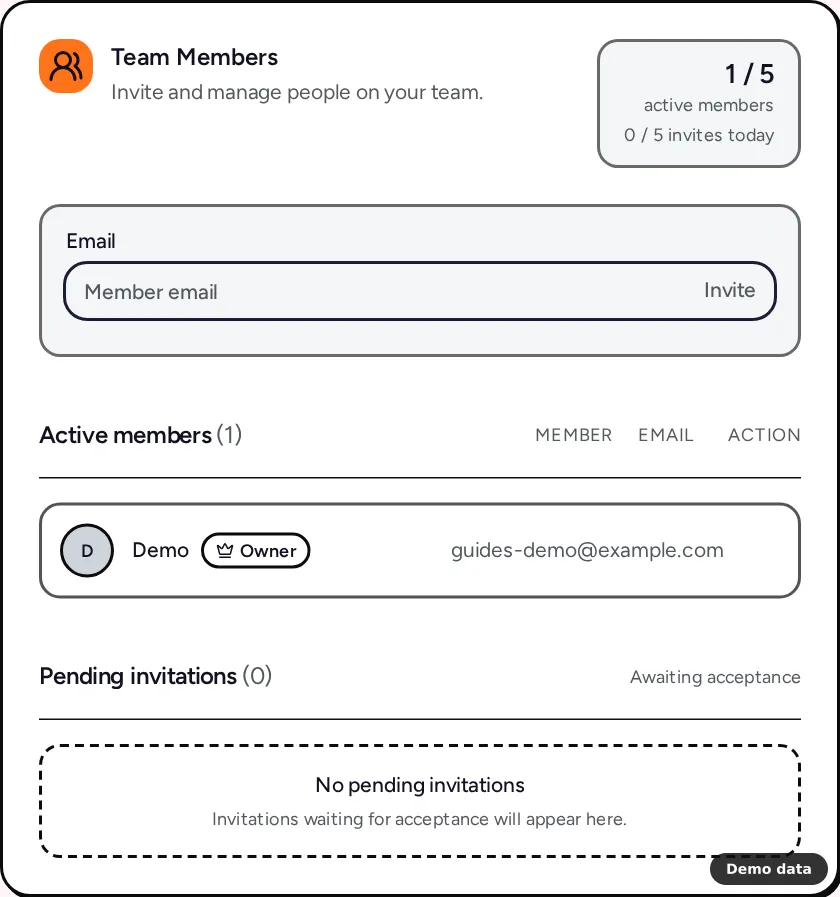
- In the Team Members card, check the counters. One shows the seats in use (for example 2 / 5) and the other how many invites you have sent today out of 5.
- Type your teammate's email in the Email field and click Invite. You see "Invitation sent successfully".
- Your teammate gets an email with a link that is valid for 24 hours. They sign in (with their second factor, if they set one up), see "Join" followed by your team name, and click Accept invitation.
- You get an email when they join, and they are taken to their forms.
Until it is accepted, the invite sits under Pending invitations, where Revoke cancels it. Members switch between your team and their own from the team switcher at the top of the sidebar, and PingPolls remembers the chosen team for 3 days.
Roles in a team
A team has two roles, owner and member. Only the owner can open the Team page, rename the team, invite, revoke and remove members, manage custom domains, manage the prefill API key and save the team's Brand Kit. Members work on the forms they are added to, and they see the same usage numbers as the owner.
How to add collaborators to a form
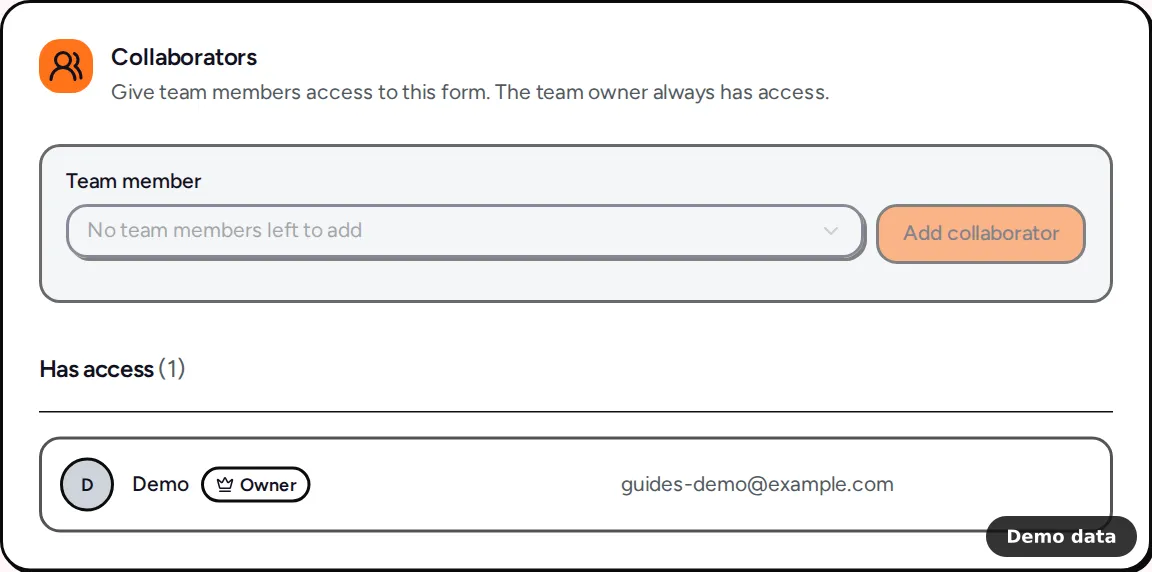
Each form has its own form owner, and everyone else who works on it is a collaborator. The team owner always has access.
- Open the form's overview and go to the Collaborators tab.
- Pick a teammate in the Team member list and click Add collaborator.
- To hand the form over, click Make owner next to a collaborator. They become the form owner and you stay on as a collaborator.
The form owner or team owner can also Remove a collaborator, who loses access straight away. A collaborator can click Leave form to step away, but a form owner has to transfer ownership first, otherwise PingPolls says "Transfer ownership to a collaborator before leaving".
Collaborators can edit the form in the studio, publish it, read results and change the title and language in Settings. The other form settings, such as password, retention, duplicate checks, partial responses, close time and result email, stay with the form owner, and so do deleting responses and exporting them.
Limits
- Invites per day: 5 per team per day (UTC), and 1 per email address in any 24 hours, even if you revoke the first one.
- Seats: pending invites do not take a seat, but seats are checked again when someone accepts. If the team filled up in the meantime, they see "Team member limit reached".
- Who cannot be invited: an email without a PingPolls account, your own email, or someone already in the team. All three show "Unable to invite this email", so the message never reveals which emails have accounts.
- Removing a member: click Remove next to them. They get an email and lose access to all of the team's forms and to any apps they connected for the team. The owner cannot remove themselves.
- Leaving a team: members cannot leave a team on their own yet, so the owner removes them.
- Team name: 3 to 128 characters.
- When Teams ends: existing members stay, but you cannot invite anyone new and the Collaborators tab shows Upgrade to Teams. See plans and pricing.
Frequently asked questions
My colleague does not have a PingPolls account. What now?
Ask them to sign up first, then invite the email address they signed up with. An email without an account shows "Unable to invite this email".
Can members see every form in the team?
No. Members only see forms they have been added to as collaborators, so you can keep one client's forms away from people working on another.
What happens to a form when its owner leaves the agency?
Before removing them, transfer each of their forms to a colleague with Make owner on the form's Collaborators tab, which they or you as team owner can do. If a member is removed, they lose access to the team's forms, and the team owner still has access to every form.
