David is sending his thesis questionnaire to a defined group of participants, and his supervisor will ask how he made sure only that group answered and that nobody answered twice. PingPolls gives him two tools for that. A password keeps the form closed to anyone who only has the link, and verified sign-in asks each respondent to sign in with Google or GitHub, so every response carries an email address the respondent could not type in by hand.
Both are included in Pro and Teams, and only the form owner or team owner can set them up. You can use them on their own or together, in which case respondents enter the password first and sign in after.
How to add a password
- Open the form's overview and go to the Settings tab.
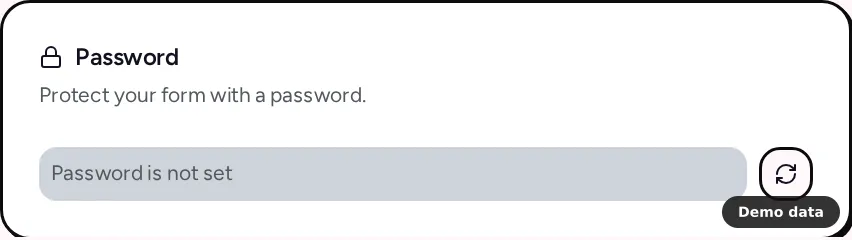
- Find the Password card and click the Generate Password button (the refresh icon). PingPolls creates a 7-character password, saves it on the form straight away and copies it to your clipboard.
- Paste the password into the message you send your participants, together with the form link.
We store the password hashed, so after you leave the page the card only shows dots. Copy it while it is on screen, and if you lose it, generate a new one. Generating again replaces the old password, which is also how you change it. To remove protection, click Disable Password (the X button), and the card confirms "Password removed".
What respondents see
Someone who opens the link sees a "Password Protected Form" page asking them to enter the password. A wrong one shows "Invalid password." and the right one opens the form, and that browser stays let in for 7 days. To slow down guessing, each network gets 10 tries and each form accepts 300 tries in total every 10 minutes, after which respondents see "Too many password attempts".
How to ask respondents to sign in
- Open the form in the studio and select an email question (add one if the form has none).
- Switch on Use verified email. Respondents then sign in with Google or GitHub, and this answer is filled with that email and locked.
- Publish the form.
You can also pick Verified email in the Duplicate responses card on the Settings tab, which allows one response per verified email and turns on sign-in once you save. The prevent duplicate responses guide explains how duplicate checks combine.
Respondents then see "Verify your email to continue" with Continue with Google and Continue with GitHub buttons before the first question. Their verified email is bound to the response and cannot be changed, and PingPolls applies it again on submit, so it cannot be swapped in the browser.
Plan notes
On Free, the Password card shows Upgrade to set a password, and the Use verified email switch and the Verified email duplicate check show an upgrade prompt. If a paid plan ends, a form that still has a password stops opening and says "Password protection is unavailable", and a form that needs sign-in shows "Email verification is unavailable on this plan". See plans and pricing for what each plan includes.
Frequently asked questions
Can I choose my own password?
No. PingPolls generates a 7-character password for you, so you click Generate Password again whenever you want to change it.
Does sign-in tell me who the respondent is?
It tells you the email address of the Google or GitHub account they signed in with. If your ethics approval promises anonymous answers, think twice before turning it on, and say in your questionnaire what you collect. The thesis questionnaire guide walks through the rest of David's setup.
Can a collaborator change the password?
No. Password, sign-in through duplicate checks and the other access settings are for the form owner or team owner. Collaborators can change the title and language, as the form settings guide explains.
