Prefill lets you open a form with some answers already filled in. Imagine Elena, who runs a concept test for a client and sends the same survey to three panel segments. She already knows each person's segment, so asking for it again wastes their time and invites typos that break her cross-tabs. With a prefill link, the segment arrives fixed in the response, and respondents start on the first question that matters.
Each prefilled value is one of two kinds. A fixed value shows as already answered and is submitted exactly as you set it, even if someone edits the page in their browser. An editable value shows as a starting answer that the respondent may change.
How to create a prefill link
- Publish your form, then open it from Forms and go to the Sharing tab.
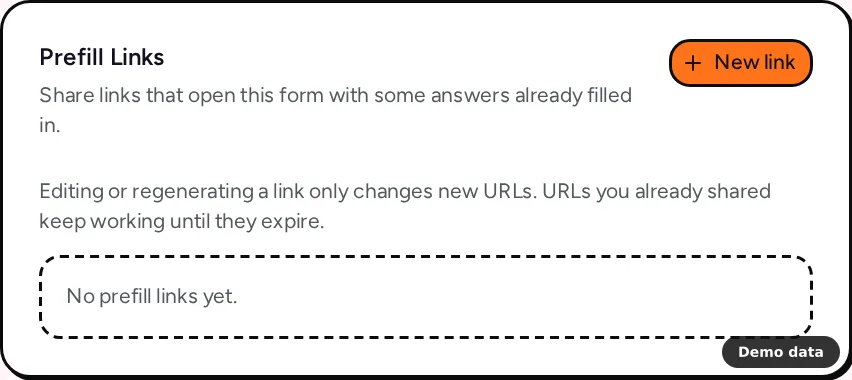
- In the Prefill Links card, click New link.
- Give the link a Name (1 to 128 characters), such as "Segment A invite".
- Pick how long the link works under Link works for: 5 minutes, 1 hour, 1 day, 1 week, 1 month or 1 year.
- Under Where the link opens, choose PingPolls URL, Custom domain or Embed. An embed link also needs the Origin and the Embedding page origin of the page that will show the form.
- Under Answers, fill in the questions you want to prefill. Turn on Respondent can change this for an editable value, and leave it off to keep the value fixed.
- Under Custom fields, set any starting values you need, for example a source tag.
- Click Generate and copy, then paste the link into your email or panel tool.
Your link appears in the card with Copy, Edit, Regenerate and Open buttons. Everyone with access to the form, including collaborators, can create and manage these links.
Send prefill links from your own system
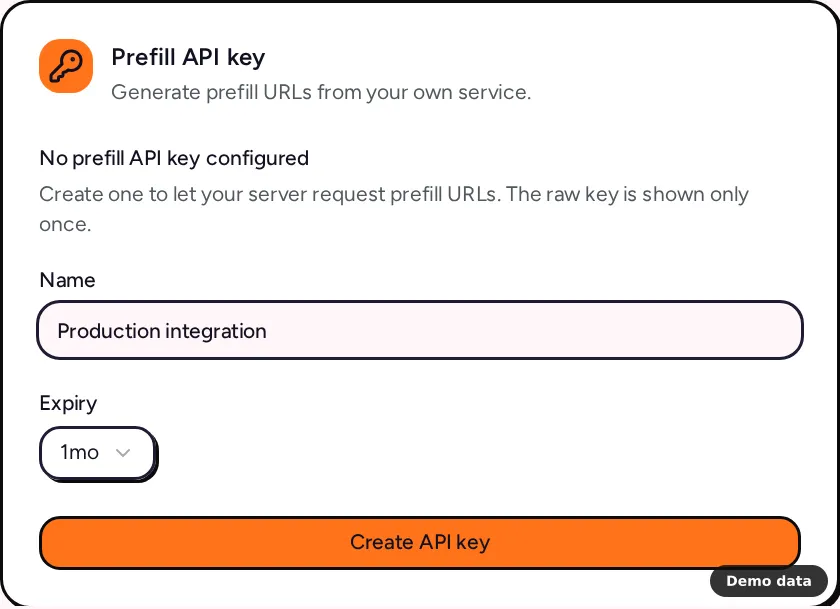
When Elena's panel tool should create a link per respondent, the team owner creates a Prefill API key on the Team page. Copy the key when it appears, because it starts with ppk_ and is shown only then. Your service then calls POST /api/forms/{id}/prefill with the key as a bearer token and gets back a prefill URL and the time it expires.
- A team has one active key at a time. Rotate key issues a new secret with the same name and expiry and stops the old one at once.
- Creating or rotating a key works once per 60 seconds per team.
- Each key can make 2 calls per second; a third call in the same second gets "Prefill API rate limit exceeded".
- Only the team owner can manage the key.
What you can prefill
- Any question except file uploads, preference ranking and sentiment cards.
- Up to 100 question values and 100 custom field values per link. Custom text can be up to 4,096 characters.
- Values must follow the question's own rules, so an email question needs a valid email and a number must sit inside its minimum and maximum.
How a link stays private
The prefill data travels in the part of the address after #, which browsers don't send to servers when the page loads. When the respondent opens the link, the form swaps it for the values and clears it from the address bar. A link is tied to the form, its channel and the published version, which keeps a link from one place working somewhere else.
Limits to plan for
- Links are not single-use. Anyone with the URL can open it until it expires, so share it with the people it is meant for.
- Publishing a new version stops old links. They fail with "Prefill payload does not match the published revision", so create fresh links after you publish changes.
- Editing doesn't cancel what you shared. Editing, regenerating or deleting a link only changes new URLs, and URLs already sent keep working until they expire.
- Channels must match. A PingPolls link fails inside an embed or on your custom domain, and a custom-domain link needs an active custom domain.
- Verified emails must match. If a link carries a verified email, it only works for a respondent who signs in with that same email.
Frequently asked questions
Do prefill links need a paid plan?
No plan check applies to prefill links today. Custom-domain links do need a custom domain, which is a Pro and Teams feature.
Can respondents see the prefilled answers?
Yes. Fixed values show as answered and are marked "This answer is locked", while editable values show as a starting answer.
Where do prefilled answers show up?
They are saved like any other answer, so they appear in the Responses tab, your export and every integration. You can share the form itself in other ways too, see share your form.
