A preference ranking question shows your respondent two cards side by side and asks them to tap the one they prefer. After a few rounds, every option has a place in a ranked list, so you get a clear order without asking anyone to drag ten items around on a small phone screen.
Rina, who runs a beauty brand on Shopee and TikTok Shop, uses it for exactly that. She has five lipstick shades, and the factory wants a minimum order before it produces any of them, so she puts the five shades in one preference ranking question and shares the form with her followers and past buyers. The Results tab then tells her which shade people chose first, which means she only pays for the shade that is likely to sell. Because Certiscore™ times each pick, a shade chosen quickly counts for more than one chosen after a long pause, so she also sees how sure people were.
How to add a preference ranking question
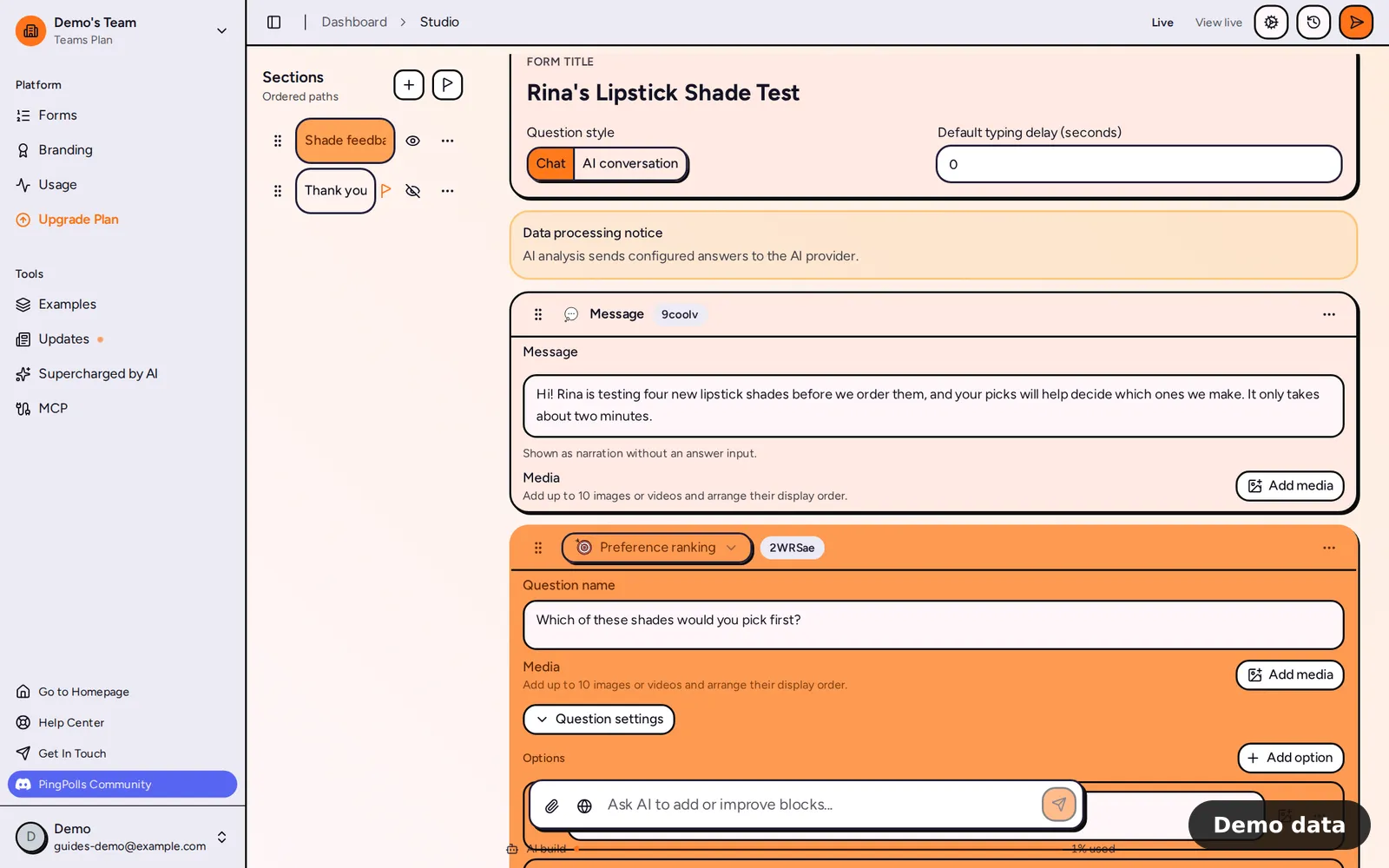
- Open your form in the studio, click Add block and choose Preference ranking under Questions.
- Write your question, for example "Which shade would you wear first?"
- Under Options, click Add option once for each variant. New cards start as "Card 1", "Card 2" and so on with a ✨ emoji, and you rename each one (labels can be up to 160 characters). You need at least two cards so there is a pair to compare, and you can add up to 10.
- Use the media button on a card to add one image, such as a swatch photo. Cards take images only, not videos.
- Drag a card's handle to change the order, or open its menu to duplicate or remove it.
- Click Question settings to set the field name, the Required switch and AI analysis.
- Click Preview and play through the question yourself, so you see what your respondents will see.
What your respondents see
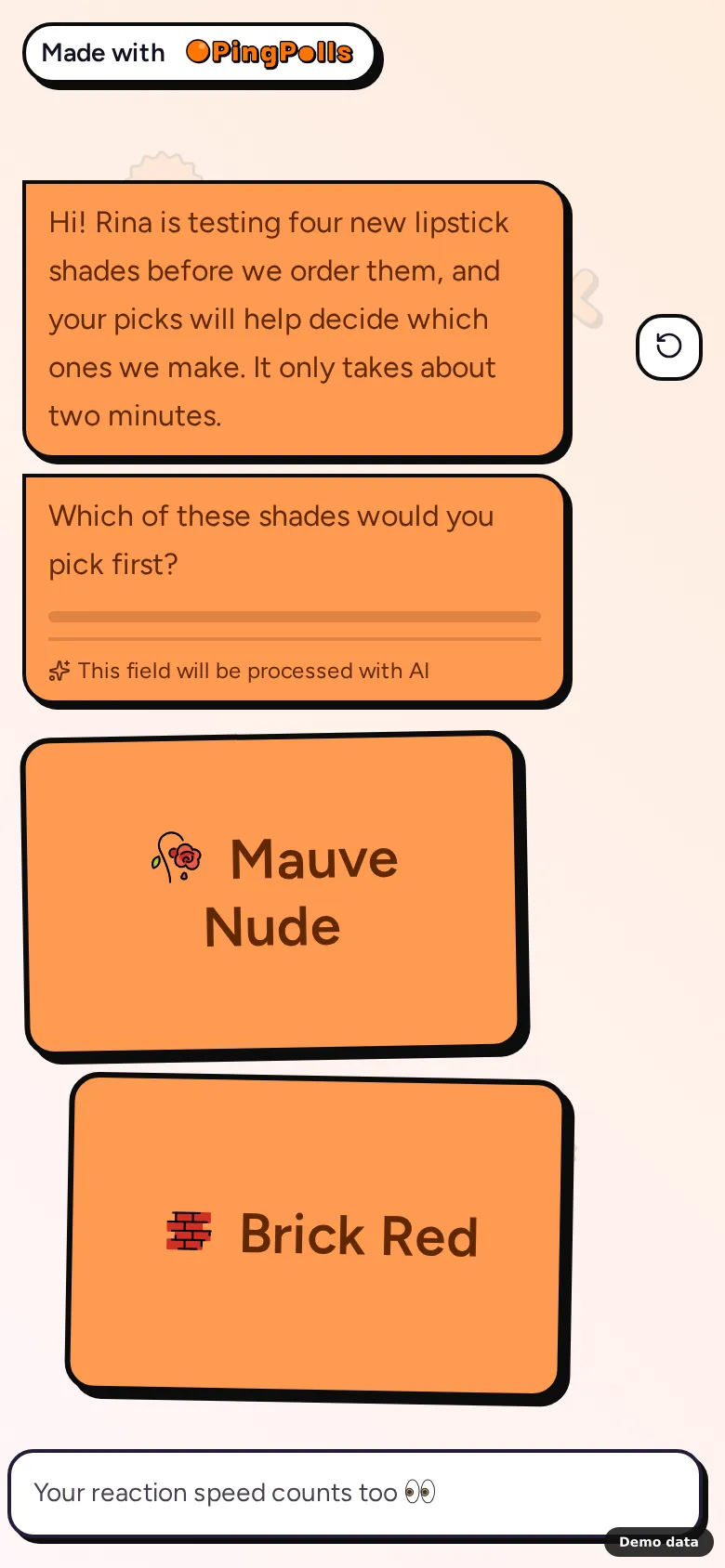
The respondent taps Start, and the first pair of cards appears. Each tap on a card picks a winner and brings up the next pair, while a progress bar shows how far along they are and a short note reminds them that their reaction speed counts too.
PingPolls skips the pairs that earlier choices already answer. If someone picked shade A over shade B and shade B over shade C, they are not asked to compare A with C, because the answer follows from what they already said. When no pairs are left, the answer is saved as a ranked list with a score for each option.
How the results show
In the Results tab, the question shows as "📊 Preferences Ranking" with the number of responses, and your options are listed by score with the top three marked 👑, 🏅 and ⭐. That ranking is the one Rina sends to her factory.
In the Responses tab, each response shows the respondent's first choice, for example "Rosewood at #1". The column filter lists your options with the hint "Responses that ranked any of these first.", so you can pull up everyone who put a given shade on top and read the rest of their answers (see View and export responses).
Limits
- Up to 10 cards per question, each with a label of up to 160 characters and at most one image.
- The answer type can only be switched to sentiment cards, which uses the same cards.
- A preference ranking question cannot be the condition in conditional logic. If you want to route people by their favourite, add a multiple choice question and put the logic on that.
- Preference ranking works on every plan, including Free.
Frequently asked questions
How many pairs will each respondent see?
It depends on their answers. They never see more than every possible pair (with five cards that is at most 10), and usually fewer, because pairs that follow from earlier picks are skipped.
Should I use preference ranking or sentiment cards?
Use preference ranking when you need one winner and an order among up to 10 options. Use sentiment cards when each idea should be judged on its own, for example when you have up to 20 ideas and want to know which ones people like at all.
Can I run a full variant test with this?
Yes, and the variant test guide walks through the whole flow, from writing the question to reading the ranking before you order.
