A file upload question lets your respondent send one or more files as their answer, such as a photo, a receipt or a PDF. The files are stored privately and sit next to the rest of that person's answers, so you never have to match an email attachment to a form response by hand.
Bagas, who leads CRM and community at a consumer brand, uses it for warranty registration. A QR code in the package opens a short chat-style form, and one question asks the buyer for a photo of the product's serial number sticker. Because the photo arrives inside the response, his team can check each registration in one place instead of chasing buyers for pictures later (see how to collect feedback with a QR code).
How to add a file upload question
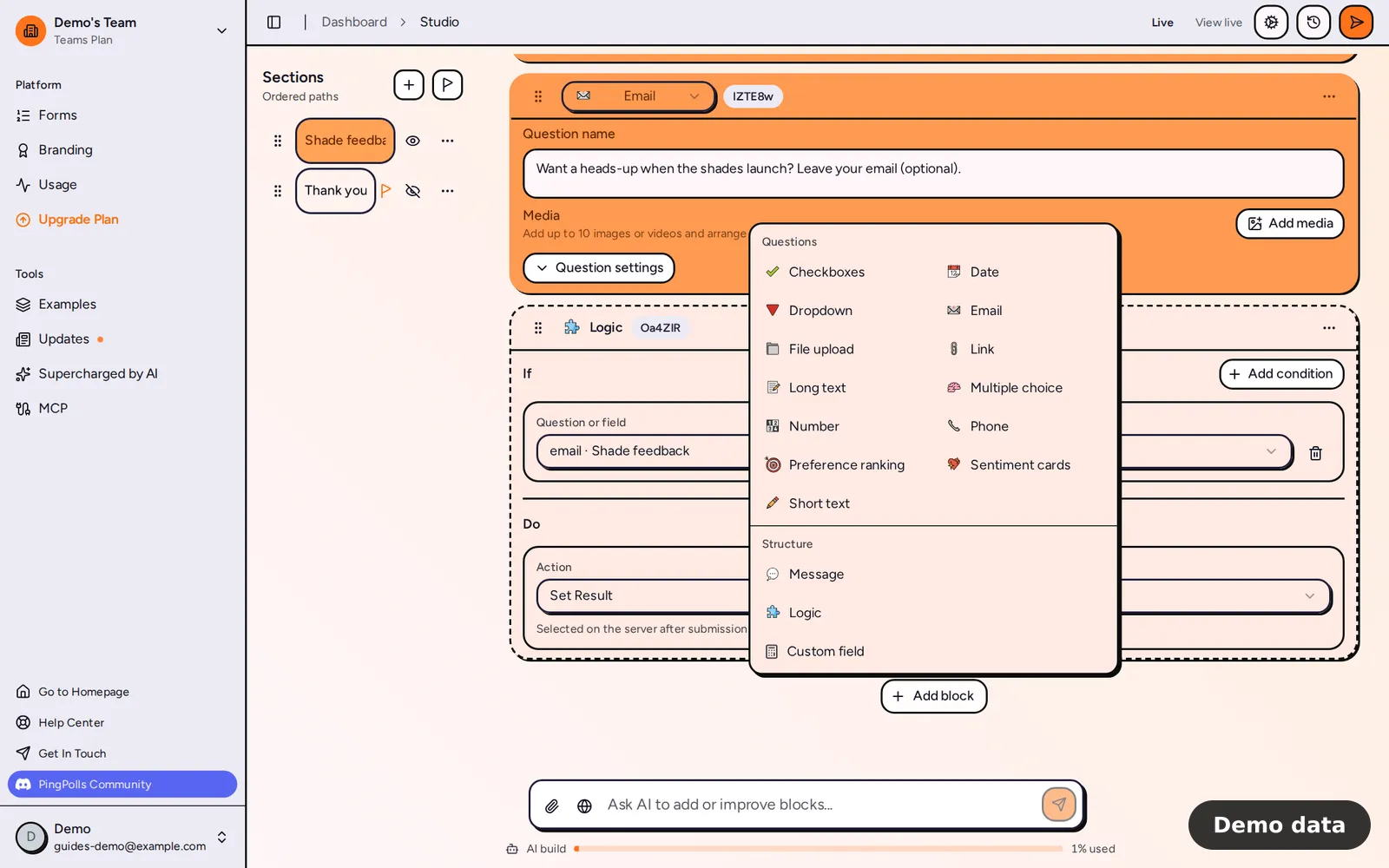
- Open your form in the studio, click Add block and choose File upload under Questions.
- Write your question, for example "Send us a photo of the serial number sticker on the box."
- Click Question settings and set Maximum file size (MB), which is at least 1.
- Open Accepted file types and tick the types you accept. They are grouped into Documents & archives, Audio, Images, Text and Video, and ticking a group ticks every type in it. Leave everything unticked to accept any type, or use Clear to start over.
- Turn on Allow multiple files if respondents may send more than one, then set Minimum files and Maximum files. Switching this on or off resets both numbers.
- Set the Required switch, and turn on AI analysis if you want PingPolls AI to read uploaded text and PDF files (this needs a paid plan).
- Click Preview and upload a test file yourself.
What your respondents see
The respondent gets a drop zone and an upload button, with a short line that states your limits, such as the largest size and the accepted types. They can drag files in or pick them from their phone, and images can be cropped before they send them. On a single-file question a new file replaces the old one, while a multiple-file question keeps adding files until the maximum.
If a file breaks a rule, the respondent sees why straight away, for example "receipt.pdf is larger than 5 MB", "receipt.heic is not an accepted file type", "Choose at most 3 files" or "Choose at least 2 files". Nothing is uploaded until the respondent confirms the answer, and if they later edit that answer, the files they already uploaded are kept.
Where the files go
Uploaded files are stored privately, and the space they take comes out of your team's storage, which is about 1 GB on Free and about 100 GB on Pro and Teams (see Plans and pricing). PingPolls reserves the space when an upload starts, so when your storage is full the respondent sees "Cannot upload file because storage quota is exhausted". Large files of 100 MB or more upload in parts and can resume if the connection drops.
In the Responses tab, files show as tiles that open a preview, and each has a Download button (see View and export responses). When you send answers to another tool, files go as links that only open for signed-in people with access to the form (see Integrations). A respondent can open their own file only until they submit, and when you delete a response, its files are deleted too and the storage is freed.
Limits
- The size limit, accepted types and number of files are set per question.
- File answers cannot be filtered in the Responses tab and cannot be the condition in conditional logic.
- AI analysis of uploaded files needs an active paid plan. If the plan lapses, files already analyzed stay, and new uploads are not analyzed until you renew.
- The question type cannot be swapped for another type.
Frequently asked questions
Can respondents upload a photo from their phone camera roll?
Yes. The upload button opens the phone's own file picker, which is set to the types you accept, and a file of any other type is refused with a message.
Can anyone with the link open uploaded files?
No. File links ask for sign-in and open only for people with access to the form, and the respondent loses access to their own file once they submit.
What happens to files when I delete a response?
They are deleted with it, and the space they took is given back to your team's storage.
