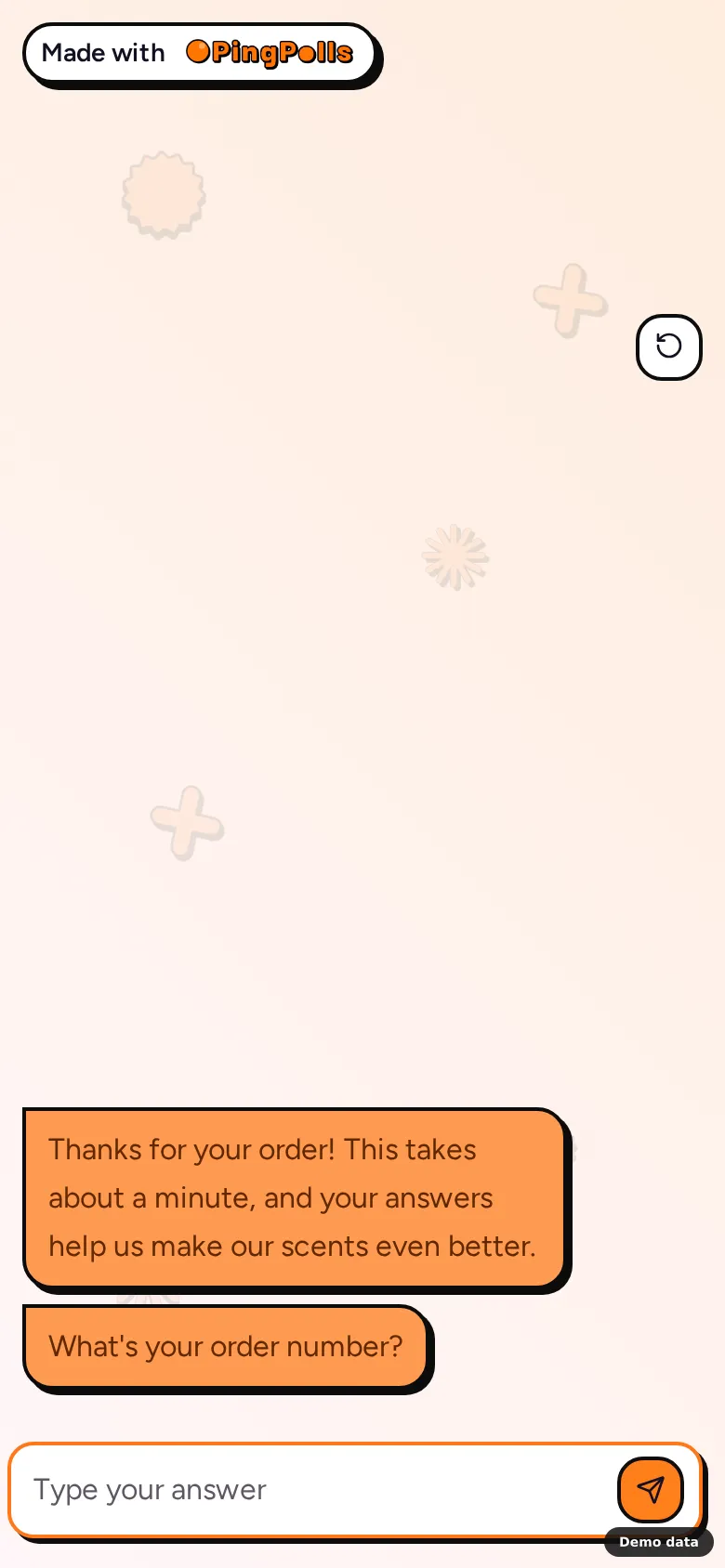
Marketplaces keep your buyers' contact details, so when someone orders once and never comes back, you have no way to ask them why. The card you put in the box is one of the few places you can still ask, and a QR code on it opens a short chat-style form that buyers can finish on their phone with one hand.
Because marketplaces penalize sellers who pull buyers off the platform, keep the card about three things only, which are feedback, warranty registration and an opt-in to hear from you. Ordering stays on the marketplace where the buyer bought, and your card simply gives them a way to talk to you. This guide shows you how to build that form, print the code, let repeat buyers answer for every order and send the answers to your CRM.
Step 1: Build a short form with two paths
Buyers scan the card for different reasons, so the first section asks two things. A required Short text question asks for the order number, which buyers can copy from their marketplace order page, and a Multiple choice question asks "What would you like to do?" with "Share feedback" and "Register my warranty". Every buyer answers the order number whichever path they take, which matters in Step 3. Then give each path its own section, in this order, a feedback section, a warranty section and a last section for the WhatsApp opt-in, and connect them with two Logic blocks.
- Under the "What would you like to do?" question, add a Logic block with the condition "is Register my warranty" and the action Go to section now, pointing at the warranty section.
- At the end of the feedback section, add a Logic block with no conditions and the action Set next section after finishing, pointing at the opt-in section, so feedback buyers skip the warranty questions.
Each path stays short, because nobody answers warranty questions they didn't come for. Conditional logic covers the rest of the routing options.
The feedback section works best with two or three questions.
- A multiple choice question such as "How did the product hold up?". Short options appear as reply chips, so buyers answer with a single tap.
- A Long text question such as "What would make you order again?". Buyers can tap Record answer and say it instead of typing, and if you turn on AI analysis for this question, PingPolls reads the emotion in each answer for you.
The warranty section collects what you need to honor the warranty.
- A Date question for the delivery date, with Before date set to Today so nobody picks a future day.
- An Email question if your warranty process needs one.
The optional WhatsApp opt-in sits in the last section, which both paths reach. Add a Phone question that respondents can skip, with the question text saying what they'll receive, such as "Want warranty reminders and new launches on WhatsApp? Leave your number, or skip this." In Question settings, limit the allowed countries to the ones you ship to, which also narrows the country picker buyers see. PingPolls stores the number and sends it wherever you connect it, and it doesn't send WhatsApp messages itself. See Phone number for the formatting rules.
Step 2: Download the QR code for your printer
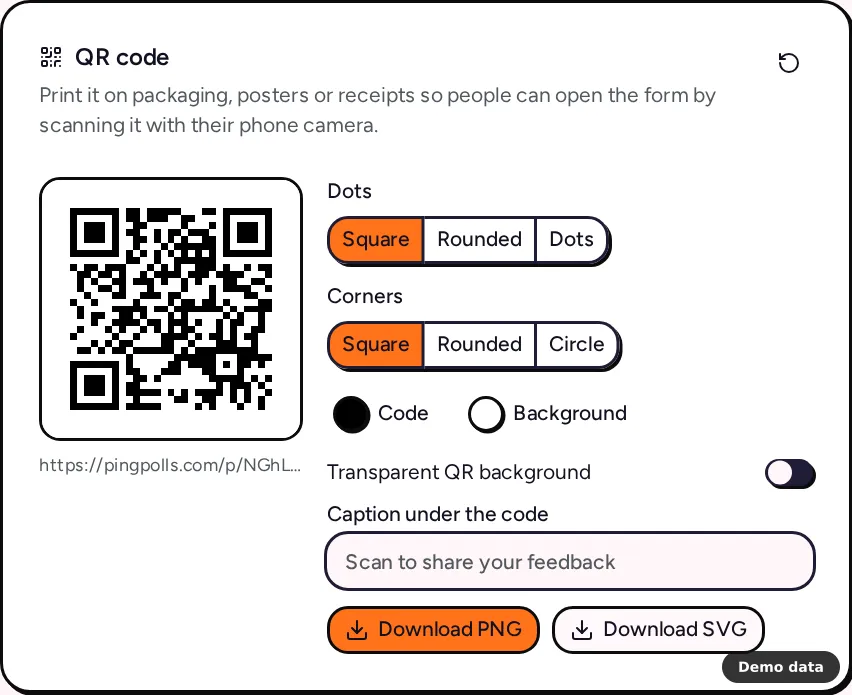
Click Publish, and the form overview opens on the Sharing tab. The QR code card encodes the saved PingPolls link, or your custom-domain link if your team has one on Pro or Teams (a Link choice appears when both are on).
- Pick a style under Dots (Square, Rounded or Dots) and Corners (Square, Rounded or Circle).
- Set the Code and Background colors to match your card. If the code isn't clearly darker than its background, the card warns that phone cameras may not read it, so keep a dark code on a light background.
- Write a Caption under the code of up to 40 characters, such as "Scan to share your feedback".
- Click Download SVG for your printer, or Download PNG (1024 pixels wide) for a quick proof.
The style is remembered in your browser only, so save the downloaded file with your print artwork. The printed code keeps working when you edit the form later, because publishing updates replaces the version buyers see at the same link. It stops working only if you turn the PingPolls link off or archive the form, which is worth remembering before you print ten thousand cards. Share your form explains each sharing channel.
Step 3: Let repeat buyers answer for every order
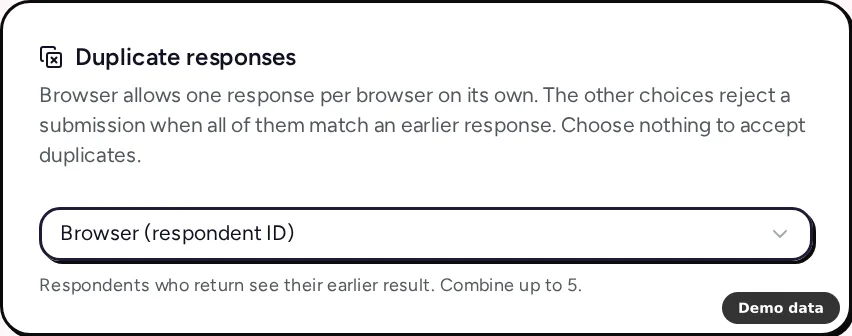
By default PingPolls accepts one response per browser, which is right for most surveys but wrong for a card that arrives with every order, because a buyer who scans the card from their second box would land on their previous result.
To fix that, open the Settings tab, go to the Duplicate responses card and open Match duplicates by. Remove Browser (respondent ID) and choose your order number question under Answer to, then click Save settings. Each order number can now be answered once, and the same phone can come back with the next order. Keep the order number question required and in the first section, because a submission that skips the question a duplicate check uses is refused. Prevent duplicate responses and spam covers the other combinations.
Step 4: Fill in the order number for buyers (optional)
If your packing system prints a slip for each order, it can ask PingPolls for a link with that order number already filled in. The team owner creates a Prefill API key on the Team page, and your system sends the order number to the prefill API and receives a URL, which your label software prints as a QR code on the slip. A fixed value is submitted exactly as set, so the buyer can't change it.
Prefilled links have limits that matter for print, so read them before you plan around this. A link expires (the longest choice is 1 year), it isn't single-use, and publishing a new version of the form makes older prefilled links stop working. That means the plain QR code from the Sharing tab is the safer choice for cards you print in bulk, while prefilled links suit slips printed shortly before shipping for a form you rarely republish. Prefill links and API has the full rules.
Step 5: Send answers to your CRM
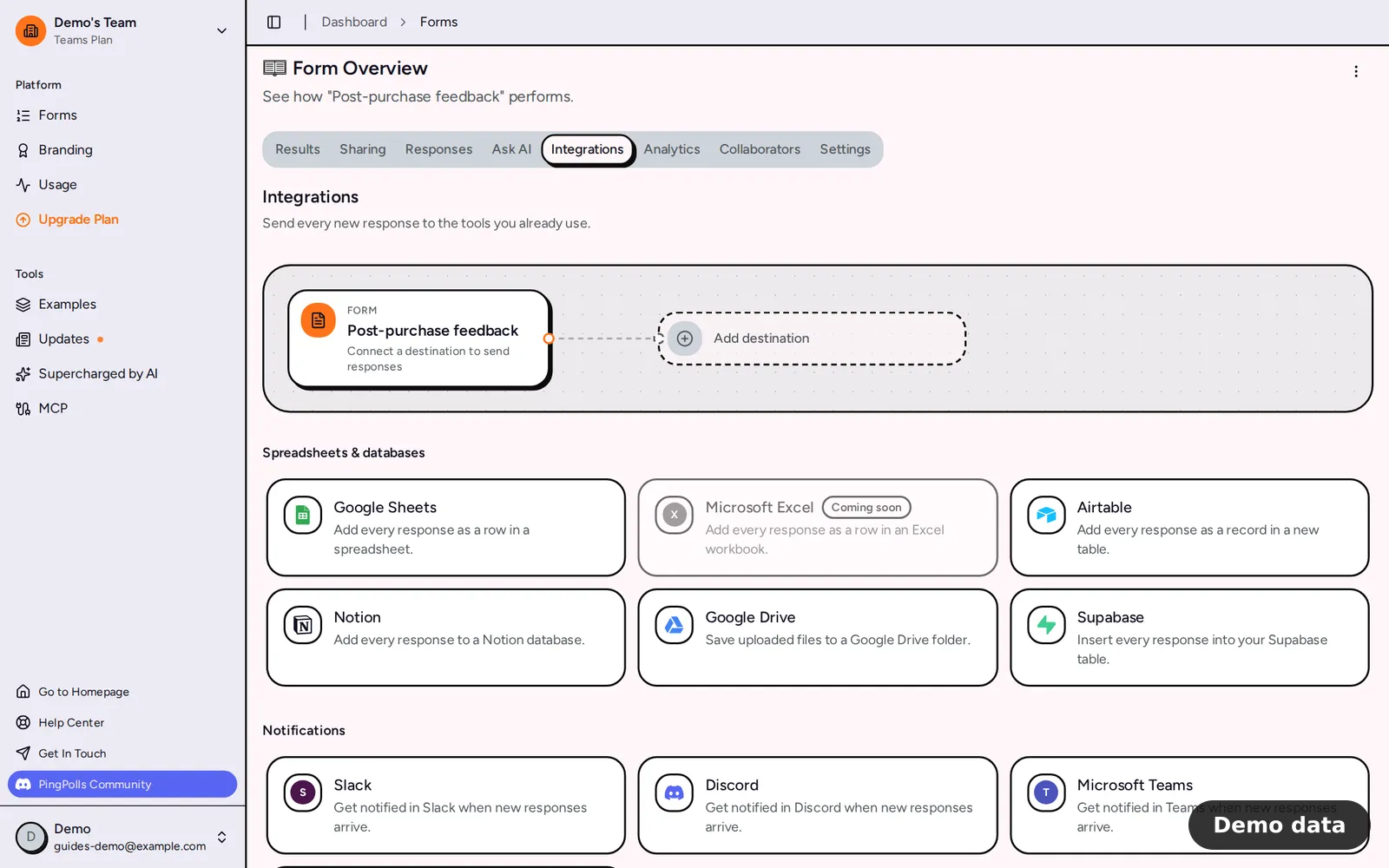
Open the Integrations tab (only the form owner can manage it) and connect the place where your team already works.
- CRM: Odoo creates a lead for each response, which suits the warranty path where buyers leave their contact details, and it needs Pro or Teams. The other CRM and email tools in the Integrations tab are still marked "Coming soon".
- Google Sheets adds a row per response, which is often all a small team needs.
- Slack, Discord, Microsoft Teams and Telegram post a count-only notice such as "3 new responses · Form name" with a link, and never the answers themselves.
- Webhooks send signed JSON to your own system.
Map the WhatsApp number to the matching phone field in your CRM, so opted-in buyers arrive with their number attached. A provider that isn't ready yet shows a "Coming soon" badge and can't be selected. The integrations guide lists every provider.
Step 6: Read what buyers told you
The Results tab charts each choice question, and the Emotion Analysis card shows how buyers felt in their long-text answers. In the Responses tab you can filter by emotion, so reading every frustrated answer from last month takes a minute instead of an afternoon.
The Analytics tab shows visits next to submissions, which tells you how many buyers scanned the code and didn't finish. On a paid plan, the per-question funnel shows exactly where they stopped, so you know which question to shorten first.