Bagas's sales team works in Odoo, so a feedback form only pays off for them when the people who asked to be contacted show up as leads they can work on. The Odoo integration creates one lead in Odoo CRM for every response, and you decide which answers fill the contact name, email, phone and notes. That way a buyer who scanned the QR code in the package and asked about a bulk order is already in the pipeline when the team opens Odoo.
Before you start
Odoo needs the Pro or Teams plan. You also need an API key from the Odoo user who should own the leads, and that user must be allowed to create CRM leads.
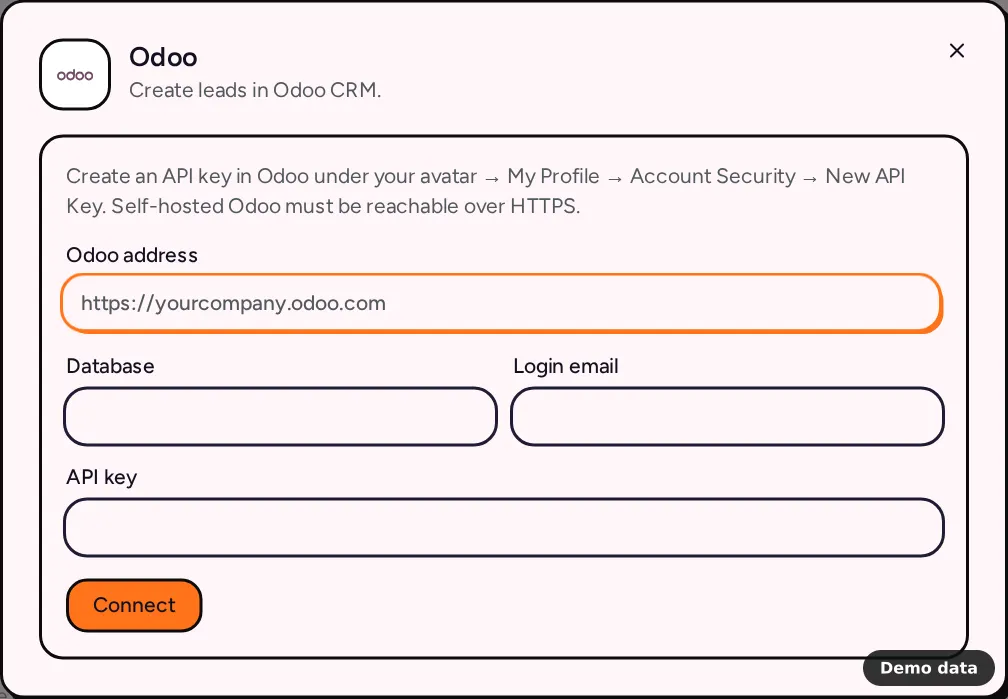
To create the key in Odoo, open your avatar menu, go to My Profile, then Account Security, and click New API Key. Copy the key while Odoo shows it.
How to connect Odoo
- Open your form and go to the Integrations tab.
- Under CRM & email marketing, click Odoo.
- Fill in Odoo address, such as
https://yourcompany.odoo.com. For Odoo Online we fill in the Database from the address for you, and for a self-hosted Odoo you type it yourself. - Enter the Login email of the Odoo user and paste the API key.
- Click Connect. We check the details before saving, so you know straight away if something is off.
- Map the lead fields. Each row pairs a Lead field with an Answer to send, and contact name, email, phone, company name, lead title and notes come first. Add more with Add a lead field, then click Save.
What the checks tell you
- "Odoo rejected the database, login, or API key." means one of the three doesn't match. Check the database name first, since it's the easiest to mistype.
- "Install the CRM app in Odoo first." means the database has no CRM module yet.
- "This Odoo user can't create CRM leads." means the user's access rights need changing in Odoo.
How leads are created
Every response creates a new lead. If you don't map the lead title, we name the lead after the form, followed by the contact name or email when you mapped one, so leads from the same form are easy to spot in the pipeline. Number fields receive numbers, and every lead's notes end with a line like "PingPolls response" followed by the response ID. That line is how we recognize a lead we already created, so a retried response never creates the same lead twice.
You can send any question, a calculated custom field, the Response ID or Submitted at time, or a Fixed value such as a sales team tag. Mapped questions must exist in the published form, and you can map up to 500 fields, each one once.
Limits and plan notes
- Odoo is a paid integration. On Free its tile shows a Pro badge, and connecting fails with "This integration provider requires a paid plan". If a paid plan lapses, deliveries stop with the same message. See plans and pricing for what each plan includes.
- A self-hosted Odoo must be reachable over HTTPS.
- If you change the Odoo address to a different site, enter the API key again. We only reuse a saved key for the address it was entered for.
- Responses are sent one at a time, in runs that start every minute. If Odoo rejects a lead, the Activity panel shows "Odoo rejected the lead. Check the field mapping."
Frequently asked questions
Does Odoo update an existing lead when the same person answers again?
No. Each response creates its own lead, which keeps every answer visible as its own entry. If you'd rather match contacts by email, send responses through a webhook and let your own service decide whether to update an existing contact.
Can I send responses collected before I connected?
Yes. Open Activity in the Odoo dialog and click Send existing.
Where is the API key stored?
It's stored encrypted, and the field shows "Saved" afterwards instead of the key itself. To replace it, paste a new key and click Update connection. The integrations overview covers the other CRMs, and the QR code feedback guide shows the form Bagas sends to Odoo.
