Elena runs research at an agency, and her analysts already clean and chart data in Google Sheets, so the fastest way to get a client study moving is to have every answer arrive there on its own. The Google Sheets integration does exactly that. Each response becomes one row, each question gets its own column, and the sheet keeps up when you add a question halfway through fieldwork.
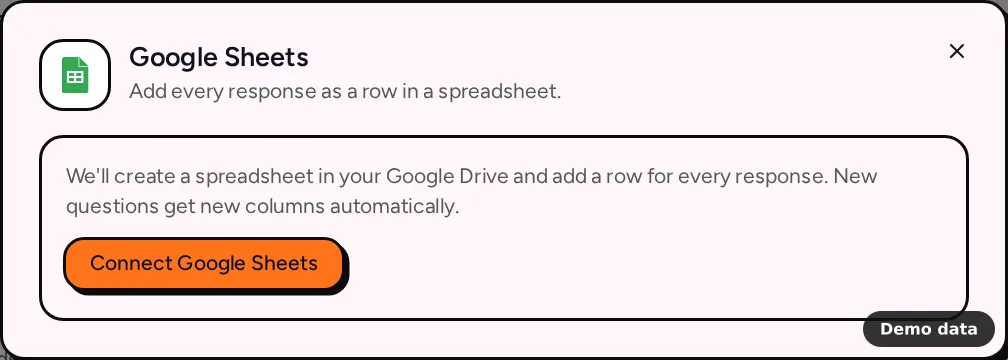
How to connect Google Sheets
- Open your form and go to the Integrations tab.
- Under Spreadsheets & databases, click Google Sheets, then Connect Google Sheets.
- Sign in with Google and allow access. PingPolls only asks for access to the files it creates or the ones you pick, so the rest of your Drive stays out of reach.
- We create a spreadsheet named after your form ("Customer study responses", for a form called "Customer study") with a tab called "Responses", and the dialog shows a link to it under "Responses go to".
That's the whole setup, and the badge turns Active once the spreadsheet is ready.
Use a spreadsheet you already have
If your team keeps everything in one workbook, click Change spreadsheet, choose Use an existing spreadsheet, then Choose from Google Drive. Google's file picker opens above the dialog, and once you pick a file we add a new tab named after this form ("PingPolls · Customer study"). Your other tabs stay exactly as they were, because we never write outside our own tab.
What the sheet looks like
The first row is the header. It starts with Response ID and Submitted at, then one column per question in the order of your form, then one column per calculated custom field. A few question types are spread out so they're easier to analyze:
- Preference ranking and sentiment cards get one column per option, named "Question: Option", holding that option's score. Sentiment cards show the share of likes as a percentage.
- Choice questions show the option labels respondents picked, and phone numbers arrive in international format.
- File uploads arrive as PingPolls links that check access before downloading, never as raw storage paths.
When you add a question and publish again, the next response adds a new column at the end. Columns are matched by their header text, so you can move them around as you like. Keep the header row and the header names as they are, though, because a renamed header no longer matches its question and the next response adds a fresh column with the original name. Text that looks like a spreadsheet formula is stored as plain text, which keeps a stray "=" in an answer from running as a formula.
Responses from before you connected
Include earlier responses is switched on by default, so responses collected before you connected are added in the background by a daily run, 100 at a time. If you'd rather not wait, click Export existing responses now and we queue every response that was never offered to this sheet right away. Rows whose Response ID is already in the sheet are skipped, so running either one twice never doubles your data.
Limits and plan notes
Google Sheets works on every plan, including Free. A form can have one Google Sheets connection at a time, and only the form owner (or the team owner) can set it up. Responses go out in runs that start every minute, and many rows are sent in one go. If Google access expires or is revoked, the badge shows Reconnect and responses wait, then go out once you click Reconnect and sign in again.
Frequently asked questions
Can I edit the sheet while responses are coming in?
Yes. Sort, filter, reorder columns or add formulas in columns of your own. Leave the header row and its names alone, because we use them to find the right column for each answer, and keep the Response ID column, which is how we spot responses that are already there.
Will I get duplicate rows if a send is retried?
No. Before adding a row we check the Response ID column, and a response that's already there is skipped.
Can two forms write to the same spreadsheet?
Yes. Pick the same spreadsheet for each form with Use an existing spreadsheet, and each form gets its own tab named after it.
Where else can I send responses?
If your team prefers a database, the Airtable and Notion integrations work the same way. You can also download everything at once from the Responses tab.
