When Bagas launches a new QR code in the package, his team wants to know the moment buyers start answering, but the feedback often includes phone numbers and order details that don't belong in a channel with forty people in it. Chat notifications solve both. Slack, Discord, Microsoft Teams and Telegram get a short notice such as "3 new responses · Warranty feedback" with an Open in PingPolls link, and the answers themselves stay in PingPolls, where only people with access to the form can read them.
How notices work
We check for new responses every minute and send one notice per chat for everything that arrived since the last check. So a busy morning gives your channel one "12 new responses" message instead of twelve pings in a row. The link opens the form's Responses tab, where you can read every answer or export them.
Every app below works on every plan, including Free. A form holds one connection per app, so one Slack channel, one Discord channel, one Teams channel and one Telegram chat.
Slack
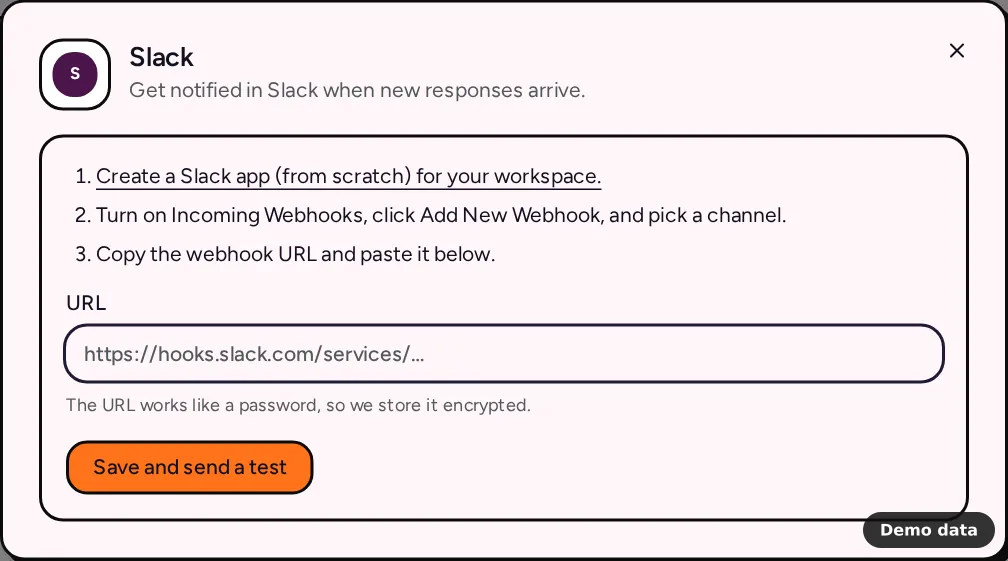
- In Slack, create an app from scratch for your workspace (the setup dialog links straight to Slack's app page).
- Turn on Incoming Webhooks, click Add New Webhook and pick the channel.
- Copy the webhook URL.
- In PingPolls, open your form, go to the Integrations tab and click Slack under Notifications.
- Paste the URL and click Save and send a test. A "Connected" message appears in the channel.
The URL must be a Slack incoming webhook (https://hooks.slack.com/services/…), otherwise saving tells you to use one.
Discord
- In Discord, open the channel settings and go to Integrations, then Webhooks.
- Click New Webhook, then Copy Webhook URL.
- In PingPolls, click Discord on the Integrations tab, paste the URL and click Save and send a test.
The URL must start with https://discord.com/api/webhooks/.
Microsoft Teams
- In the Teams channel, open the channel's ⋯ menu and choose Workflows.
- Choose Post to a channel when a webhook request is received and finish the steps.
- Copy the URL Teams shows at the end.
- In PingPolls, click Microsoft Teams on the Integrations tab, paste the URL and click Save and send a test.
Only URLs from that Teams workflow are accepted, so a URL from another tool is rejected with a message pointing you back to it.
Telegram
Telegram uses a bot you create, so the setup has one more step.
- In Telegram, open @BotFather and send
/newbot. Follow its questions and copy the token it gives you. - In PingPolls, click Telegram on the Integrations tab, paste the token into Bot token and click Save token.
- Send any message to your new bot, or add it to the group or channel that should get notices.
- Click Find chats, choose the chat from the list and click Save and send a test.
If no chats appear, the bot hasn't seen a message yet, so send it one and click Find chats again. Use a bot made for PingPolls, because a bot that already delivers updates somewhere else is rejected ("This bot already delivers updates to a webhook").
Keep the URL private
Anyone with a chat webhook URL can post to your channel, so we treat it like a password. It's stored encrypted, the dialog only shows a short hint afterwards, and you change it by pasting a new one under Replace the URL. If the channel or webhook is deleted, the connection shows Needs attention until you paste a working URL.
Frequently asked questions
Can the notice include the answers?
No. Notices only carry the count, the form name and the link, which keeps personal details out of chat history. If you want answers delivered somewhere, send them to Google Sheets or a CRM instead.
Can I pause notices for a while?
Yes. Open the app's dialog and click Pause. Click Resume when you want them back.
Can I get notices by email instead?
Yes. Email notifications send you a digest of new responses, and the integrations overview lists every other way to route responses.
