PingPolls sends two kinds of email about your forms. The new response digest tells you how many responses arrived, so you know when it's worth opening the dashboard. The result email sends each respondent a link to their own result, so they can come back to it after they close the tab.
Take Bagas, who puts a QR code in every package so buyers can register their warranty. He doesn't need an email for every single registration, but he does want to see at a glance that scans keep turning into responses. His buyers, on the other hand, want proof that they registered, and a result email gives each of them a link to the confirmation page they saw.
The new response digest
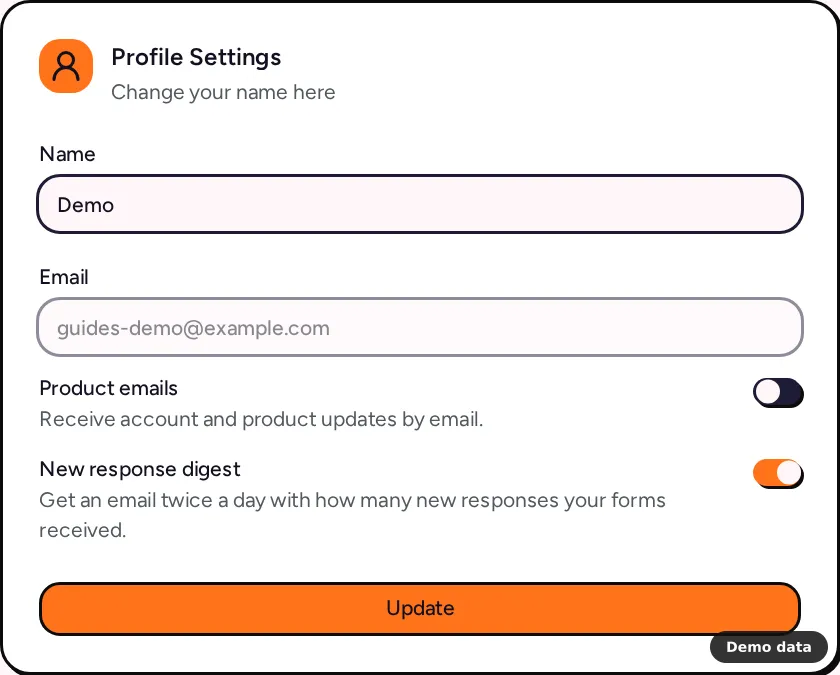
Twice a day (every 12 hours), we email form owners a count of the new responses their forms received. The digest only carries counts, never answers, and responses that arrive while it's being sent are counted in the next one.
To turn it off or back on:
- Open your Account page.
- Find New response digest ("Get an email twice a day with how many new responses your forms received").
- Switch it off or on and save.
The Product emails switch on the same page is separate. It covers account and product updates, and it starts off for new accounts.
Want a notice in your team chat instead? Slack, Discord, Teams and Telegram notices post a count with a link whenever new responses arrive. To send full answers to another system, use webhooks.
How to set up the result email
The result email (Pro and Teams) sends the respondent a link to their result page after they submit. You need an email question in the form, because that answer is where the email goes.
- Add an email question to your form and publish it.
- Open the form from Forms and go to the Settings tab. Only the form owner can change this setting.
- In the Result email card, choose the email question under Send to the answer of.
- Optionally set Send from, an address on one of your team's verified email domains, such as
[email protected]. Leave it empty to send from PingPolls. - Optionally set Reply to, so replies reach your support inbox.
- Optionally paste Custom email HTML (up to 100,000 characters). Leave it empty to use the PingPolls result email.
- Click Save settings.
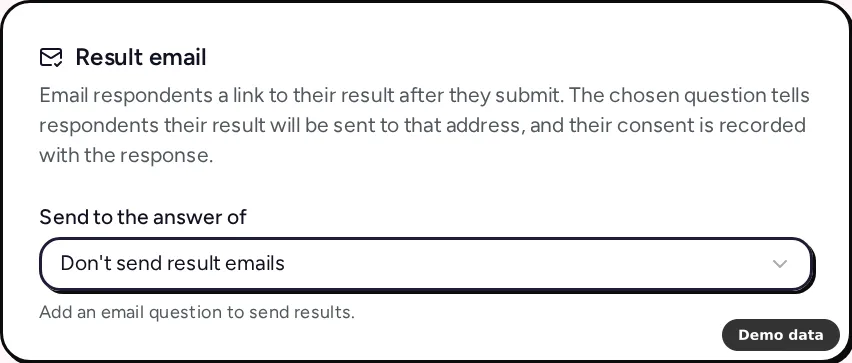
Once it's on, the chosen email question tells respondents that their result will be sent to that address, and submitting records their consent with the response. We only send the email when that consent is recorded. The link in the email works for 7 days.
Custom email HTML
If you write your own template, you can use three placeholders, FORM_NAME, TEAM_NAME and RESULT_MAGIC_LINK (the link to the respondent's result). We clean the HTML before sending, so only HTTPS links are kept and scripts are removed. Without a custom sender, the email comes from PingPolls <[email protected]> with the subject "Your response result".
Send from your own address
To send from your brand's address, the team owner connects an email domain on the Team page and adds the SPF and DKIM records PingPolls shows (DMARC is recommended). Once the domain is active, any address on it can be the sender. See custom domains for both kinds of domain.
Frequently asked questions
Why didn't a respondent get their result email?
The email is skipped when the respondent didn't give consent, when the sender address isn't on an active team email domain, or when the team's paid plan has ended. A failed email never blocks the submission itself.
Can I get an email for every new response?
The digest groups responses into one email every 12 hours. For a notice as responses arrive, connect a chat notification.
What does the respondent see on the result page?
Whatever your result section shows, which can include their own answers and calculated scores. See show a result page after submit.
