Embedding puts your form inside a page you already own. Take Elena, a researcher at an app company who wants feedback from people reading the product's help center. A link that opens a new tab asks readers to leave the article, while a form sitting inside it lets them answer while the topic is still in front of them. Their answers land in the same Responses tab as answers from any other channel, so Elena reads everything in one place.
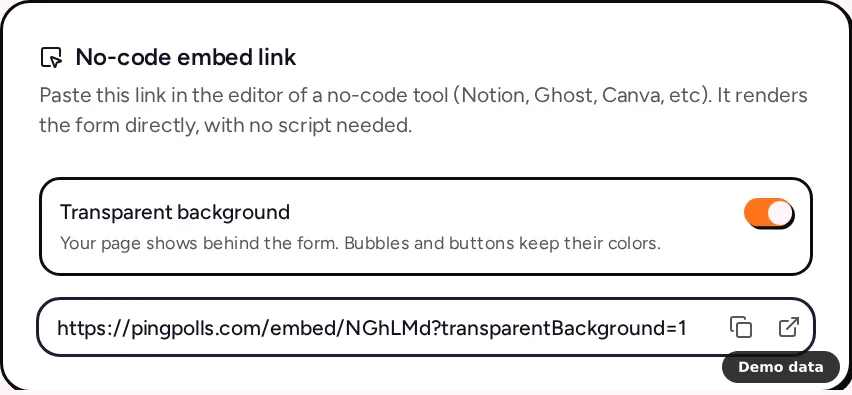
You have two ways to embed. The embed code is a short snippet for websites where you can add HTML. The no-code embed link is a plain link for tools that turn links into embeds, such as Notion, Ghost and Canva.
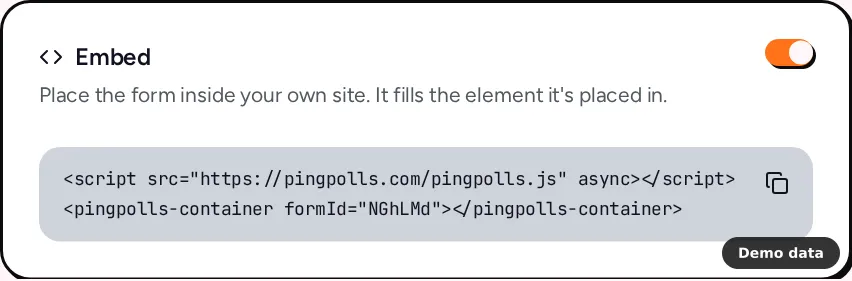
How to embed your form with the embed code
- Publish your form, open it from Forms and go to the Sharing tab.
- Make sure the Embed channel is on. If you changed it, click Save sharing.
- Click Copy embed code in the Embed card. You'll see "Embed code copied".
- Paste the snippet into your page's HTML where the form should appear. It loads the
pingpolls.jsscript and adds a<pingpolls-container>element with your form code in theformIdattribute. - Publish your page and open it to check the form.
The form fills the element it's placed in. To give it a fixed height, add a height attribute to <pingpolls-container>, either a number of pixels such as height="640" or a CSS length. The script also resizes the form as the conversation grows, and on phones it tells the form how much of the frame the keyboard covers, so the answer field stays above it. The script never sets a cookie.
For step-by-step help with a specific site builder, see how to embed on WordPress or how to embed on Webflow.
How to embed with a no-code link
- On the Sharing tab, find the No-code embed link card. It needs the Embed channel to be on and saved.
- Choose whether Transparent background is on. With it on, your page shows behind the form while bubbles and buttons keep their colors. This switch only changes the copied link and isn't saved.
- Copy the link and paste it into the editor of your tool. See how to embed on Notion for an example.
Display options
An embed link can carry three options in its address, each switched on with =1.
transparentBackgroundshows your page behind the form.dynamicHeightlets the form's height follow its content.hideLogohides the PingPolls logo. It only works for teams with branding (Pro and Teams), and otherwise the logo still shows. See remove PingPolls branding.
How embedded forms track respondents
Browsers often block cookies inside embeds, so embedded respondents get a signed token instead, valid for one year and tied to the page that embeds the form. That token is how PingPolls still recognizes a returning respondent inside your page.
Limits
- If the Embed channel is off, embedded forms show "This form is not available in this mode."
- If Embed is the only channel on, the form has no public link and the View form menu item is disabled.
- A prefill link made for the PingPolls URL doesn't work inside an embed. Create a link with Where the link opens set to Embed instead.
Frequently asked questions
Can I embed a form and still share its link?
Yes. Channels work side by side, so you can keep the PingPolls link, a custom domain and Embed on together. See share your form.
Does the embed slow down my page?
The script is cached for an hour, and the form's frame loads lazily, so it waits until the reader gets near it.
Does embedding cost extra?
No. The Embed channel is on for every plan. Only hiding the logo needs branding on Pro or Teams.
