When a client's audience already visits their Webflow site, a survey placed on that site reaches people in a setting they know, and you keep the client's brand in front of them while they answer. The data still lands in one PingPolls form, with the same duplicate checks, bot protection and Certiscore™ signals you'd report on any other study.
This guide shows you how to copy the embed code from PingPolls and add it to a Webflow page with the Code Embed element. The Webflow steps follow Webflow's own help and Webflow University lessons for that element.
Before you start
- On the PingPolls side, the form must be published with its Embed channel on. Open the Sharing tab of the form overview, check that the Embed switch is on, and click Save sharing if you changed it. Without a saved Embed channel, the page shows "This form is not available in this mode."
- On the Webflow side, custom code needs a paid plan. Webflow's help says the Code Embed element is available with a Core, Growth, Agency or Freelancer Workspace, or on a site with an active Site plan.
Step 1: Copy the embed code from PingPolls
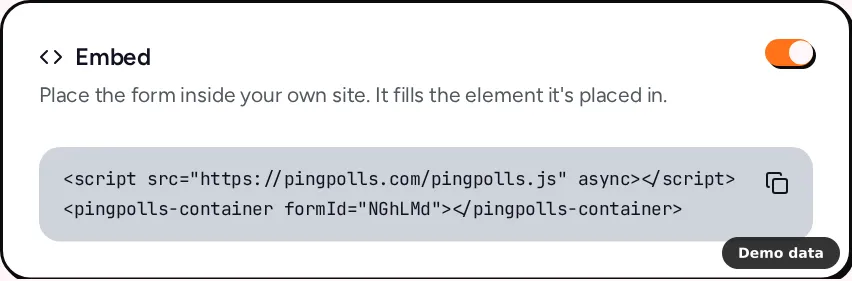
In the Sharing tab, find the Embed card ("Place the form inside your own site. It fills the element it's placed in.") and click Copy embed code.
<script src="https://pingpolls.com/pingpolls.js" async></script>
<pingpolls-container formId="your-form-code"></pingpolls-container>
Add a height attribute to the container if you want a fixed height, for example height="640". The form takes the full width of the element it sits in, so the width follows your Webflow layout. Embed your form covers every option.
Step 2: Add a Code Embed element in Webflow
- Open the page in the Webflow Designer.
- Open the Add panel and drag a Code Embed element onto the canvas. Place it inside a section, container or div, so it has space to fill.
- Paste the embed code into the code editor that opens.
- Click Save and close.
- Switch to Preview to check the form. If it doesn't appear, Webflow's lesson says to turn on Enable custom code in Preview.
- Publish the site, then open the live page and answer the form once on a phone and once on a laptop.
The embed script tells the form how much of the frame an on-screen keyboard covers, so on phones the answer field stays above the keyboard while respondents type.
Use a plain iframe instead (optional)
Some teams prefer an iframe they can style like any other element. Copy the address from the No-code embed link card on the Sharing tab, which includes the Transparent background choice (your page shows behind the form, and bubbles and buttons keep their colors), and paste an iframe into the Code Embed element.
<iframe
    src="https://pingpolls.com/embed/your-form-code?transparentBackground=1"
    width="100%"
    height="640"
    style="border:0"
    allow="microphone"
></iframe>
Keep allow="microphone" if your form has long-text questions, because respondents can answer those by voice and the browser asks for microphone permission inside the frame. The embed script from Step 1 adds that permission on its own.
Match the form to the client's brand
Respondents trust a survey more when it looks like the site around it, so set the form's look before you hand the page over. In the studio, open the Form Setup drawer and its Theme tab to choose the color, font and style, which every plan includes, and add the client's logo on Pro or Teams. If you run several studies for the same client, click Set globally to save the theme to your team, so each new form starts in the client's colors. Customize your form explains each setting.
What carries over into the embed
Your quality checks travel with the form, which is what makes an embedded study as defensible as a linked one.
- Duplicate checks still apply, because embedded respondents get a signed token tied to your page's address instead of a cookie. Prevent duplicate responses and spam explains how to combine checks.
- reCAPTCHA, when you turn it on, runs at submit exactly as it does on the PingPolls link.
- Analytics records embedded visits too, and on paid plans the per-question funnel shows drop-off for the embedded form. See Form analytics and drop-off.
- Certiscore™ times each pick on preference ranking and sentiment questions wherever the form is shown.
For studies that ask respondents to sign in with Google or GitHub, share the PingPolls link rather than the embed, because we're still checking sign-in inside embeds on our side. Teams with their own branding on Pro or Teams can also hide the PingPolls logo in embeds, as Remove PingPolls branding explains.
Frequently asked questions
Why don't I see the form in Preview?
Webflow's lesson checks custom code in Preview and points to the Enable custom code setting there when it doesn't show. Turn it on, or publish the site and check the live page. If the live page says "This form is not available in this mode.", turn on Embed in the PingPolls Sharing tab and click Save sharing.
Can I change the form without touching Webflow again?
Yes. When you click Publish updates in the PingPolls studio, the embedded form shows the new version at the same address, so the Code Embed element stays as it is.
Does the embed script set cookies on my client's site?
No. The script never sets a cookie, and browsers cache it for an hour.
