Elena's agency tracks every client study in Airtable, with linked tables for clients, waves and deliverables, so a new survey is only useful once its responses sit next to all of that. The Airtable integration adds each response as a record, either in a fresh table we build from your questions or in a table you already have. Her team can then link the records, filter them and build interfaces, while fieldwork is still running.
How to connect Airtable
- Open your form and go to the Integrations tab.
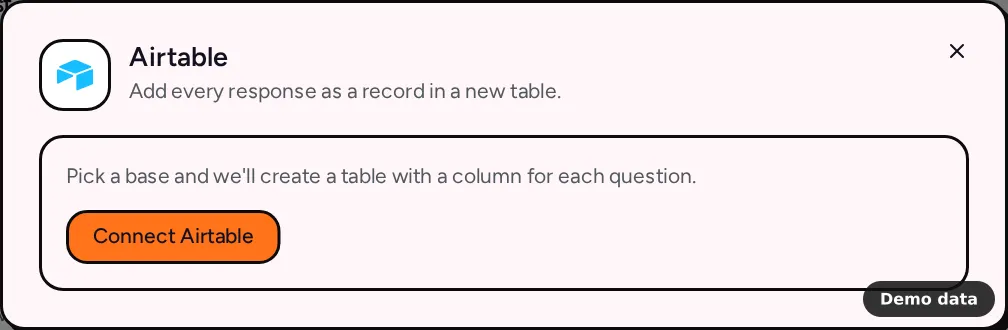
- Under Spreadsheets & databases, click Airtable, then Connect Airtable.
- In the Airtable window, grant access to the base or bases PingPolls may use, then approve.
- Back in the dialog, PingPolls asks "Where should responses go?" Pick one of the two options below.
Create a new table
Choose Create a new table, then pick a base under Choose a base. We create a table named after your form, with a field for each question, and describe it as "Responses sent by PingPolls". Click Create table and the badge turns Active.
Use an existing table
Choose Use an existing table, pick the Base, then the table under Choose a table, and click Use this table. Your fields and records stay exactly as they are. We look for a field called "Response ID" and add one if the table doesn't have it, because that field is how we avoid adding the same response twice. If the table already has a "Response ID" field of another type, we ask you to choose another table, since it must be a single line text field.
What each record holds
Each record has the Response ID, the time it was submitted, one field per question and one per calculated custom field. Choice questions arrive as the labels people picked, phone numbers arrive in international format, and file uploads arrive as PingPolls links that check access before downloading. Preference ranking and sentiment cards get one field per option with its score, which makes them easy to sort and chart.
When you add a question and publish again, the next response creates a field for it before writing the record. Records are matched on the Response ID field, so a retried send updates the same record instead of creating a second one.
Responses from before you connected
Include earlier responses is on by default when you choose a table, so responses collected before you connected are added in the background by a daily run, 100 at a time. To send them right away, click Export existing responses now in the setup.
Limits and plan notes
Airtable works on every plan, including Free. A form has one Airtable connection, and only the form owner (or the team owner) can set it up. Records are sent in batches, in runs that start every minute.
Keep the Response ID field in place. If someone deletes it, saving shows "The Response ID field was removed from the Airtable table. Choose the base again to create a new table." If Airtable access expires or is revoked, the badge shows Reconnect, and responses wait until you reconnect.
Frequently asked questions
The base list is empty. What now?
You probably didn't grant access to a base when connecting. Click Reconnect, choose the base in the Airtable window, and it appears in the list.
Can I rename the fields we created?
Yes, rename them in Airtable. If a name no longer matches a question, the next response adds a field with the question's name again, so keep the names when you can.
Can I switch to another table later?
Yes. Click Change table in the setup and choose again. Earlier records stay where they were.
Why can't I select Airtable?
If the tile is greyed out with a Coming soon badge, the connection isn't open on PingPolls yet. Until then, Google Sheets works the same way, and the integrations overview lists everything else.
