A sentiment cards question shows your respondent one card at a time and asks for a quick verdict with two buttons, such as Yes and No. Because each card is judged on its own, you find out which ideas people like at all, not just which one wins, and you can put up to 20 cards in one question.
Elena, a researcher at an agency, uses it when a client wants to know which of 12 feature ideas their app users would actually use. She puts each idea on a card, sends the form to the client's users, and gets the share of people who said yes to each idea. The response time of each verdict is recorded too, and Certiscore™ turns that decision time into a confidence signal next to the answer. That gives Elena one more quality check she can show the client alongside her own, so the data is easier to defend.
How to add sentiment cards
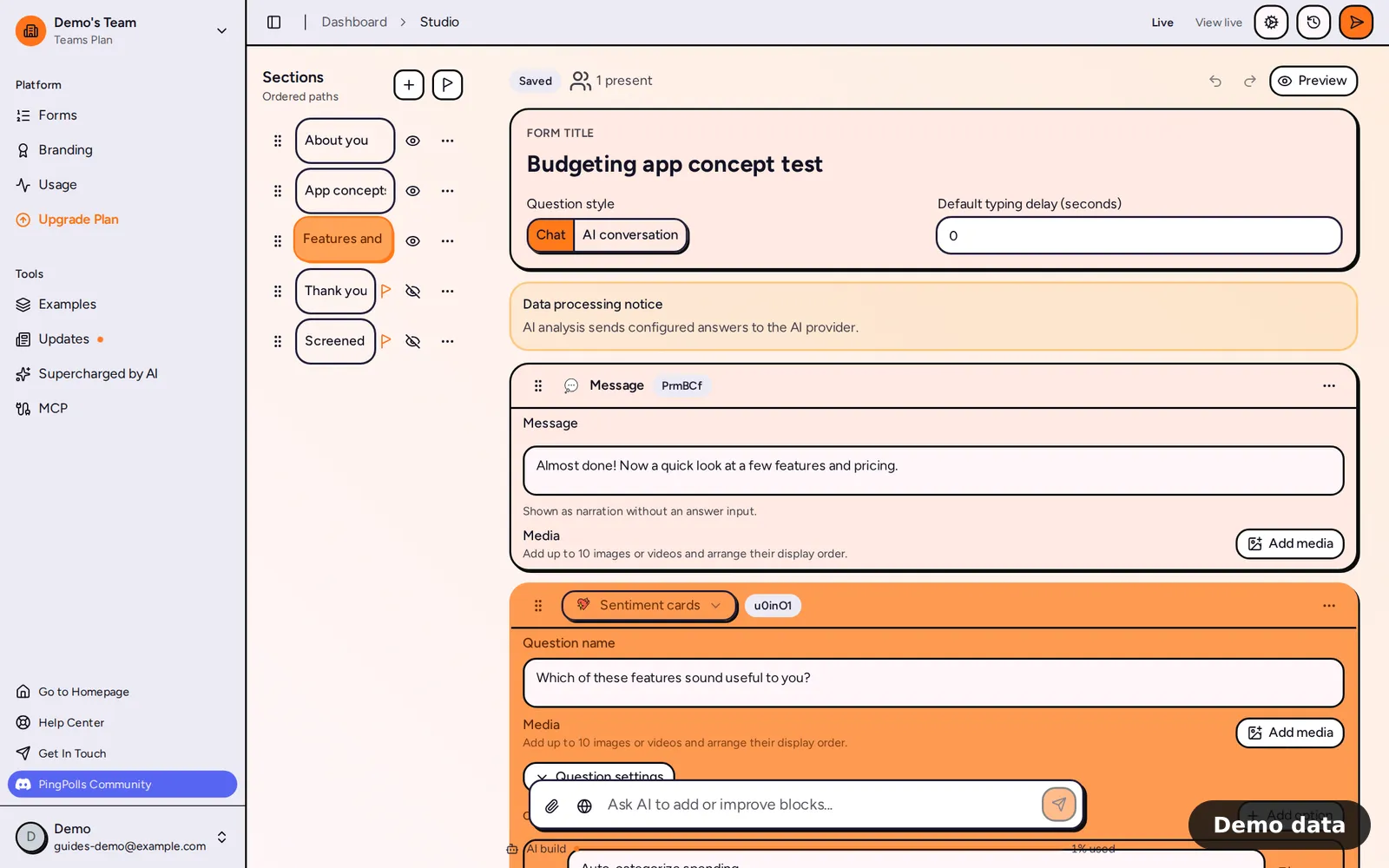
- Open your form in the studio, click Add block and choose Sentiment cards under Questions.
- Write your question, for example "Would you use this feature?"
- Under Options, click Add option once for each idea. New cards start as "Card 1", "Card 2" and so on with a ✨ emoji, and you rename each one (labels can be up to 160 characters). You can add up to 20 cards.
- Use the media button on a card to add one image, such as a screen mockup. Cards take images only, not videos.
- Click Question settings and choose an Icon mode, which is Yes / No (the default), Like / Dislike or Love / Hate.
- In the same panel, set the field name, the Required switch and AI analysis.
- Click Preview and go through the cards yourself.
What your respondents see
The respondent taps Start, and the first card appears on top of a small stack, in the order you arranged the cards in the studio. Two round buttons sit under the card, a cross and a tick for Yes / No, thumbs down and thumbs up for Like / Dislike, or an angry face and a heart for Love / Hate. Each tap records the verdict and brings up the next card, while a progress bar shows how far along they are.
How the results show
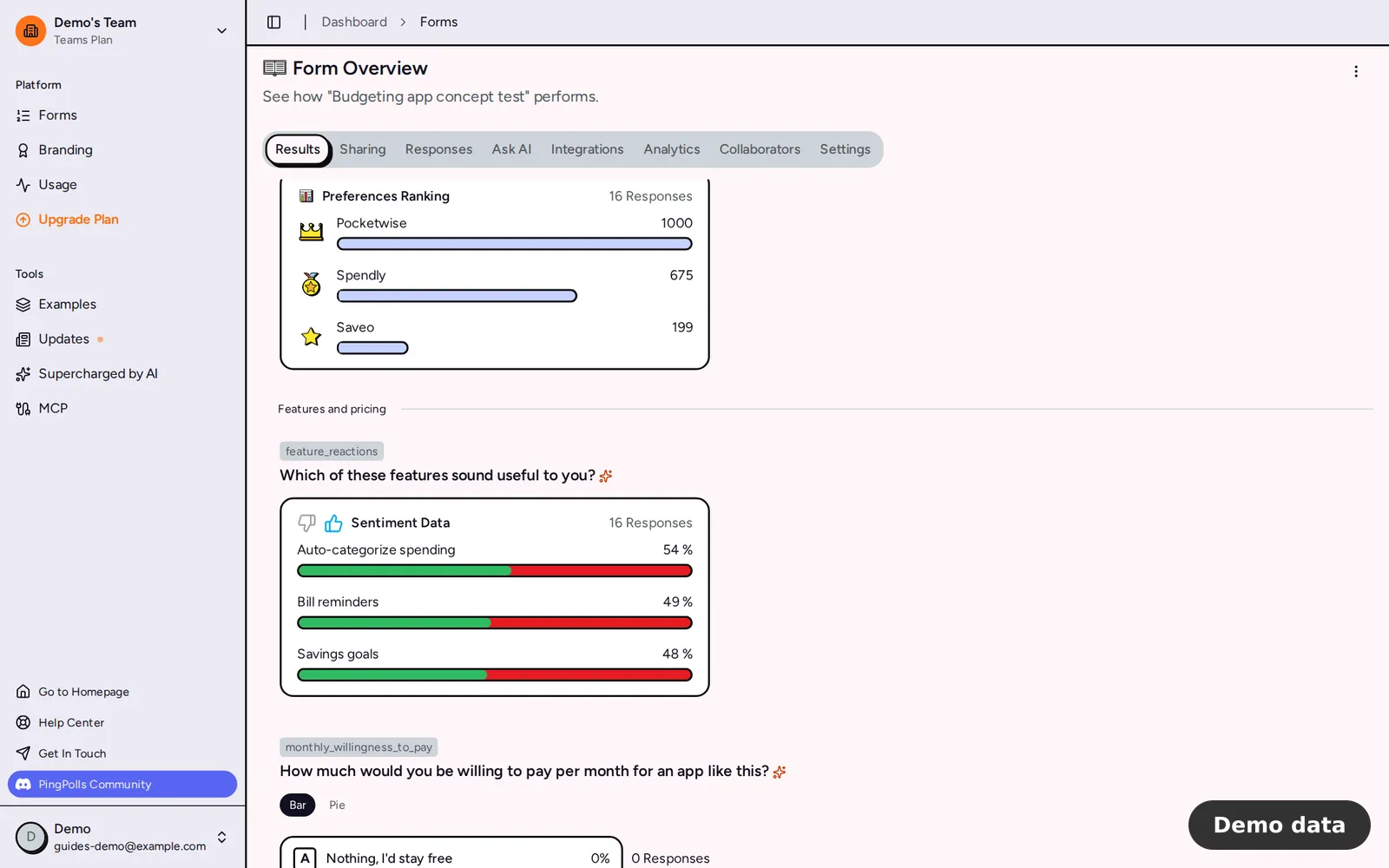
In the Results tab, the question shows as "Sentiment Data" with the number of responses, and each card shows the percentage of respondents who liked it. That is the number Elena puts in front of her client.
In the Responses tab, each response names the cards that respondent clearly liked, in words that follow your icon mode, such as "The respondent said yes to Offline mode" with Yes / No, or "The respondent loves Offline mode" with Love / Hate. Cards they did not clearly like are left out, so the cell can be empty. The column filter lists your cards with the hint "Responses that liked any of these.", which lets you open every response from people who liked a given idea (see View and export responses). With AI analysis on, you can also ask questions about these answers in Ask AI.
Limits
- Up to 20 cards per question, each with a label of up to 160 characters and at most one image.
- The answer type can only be switched to preference ranking, which uses the same cards.
- A sentiment cards question cannot be the condition in conditional logic, so route people with a choice question instead.
- Sentiment cards work on every plan, including Free.
Frequently asked questions
Which icon mode should I pick?
Pick the one that matches your question. Yes / No suits "Would you use this?", Like / Dislike suits a first impression, and Love / Hate suits a question about strong feelings. The mode also sets the wording you read in the Responses tab.
Should I use sentiment cards or preference ranking?
Use sentiment cards when each idea should stand on its own and you have up to 20 of them. Use preference ranking when you need one winner and an order among up to 10.
How does Certiscore use the cards?
Certiscore™ times each verdict and turns that decision time into a confidence signal, so treat it as one more quality check next to the checks you already run. Read how we analyze answers, and see how to check survey data quality for the full routine.
