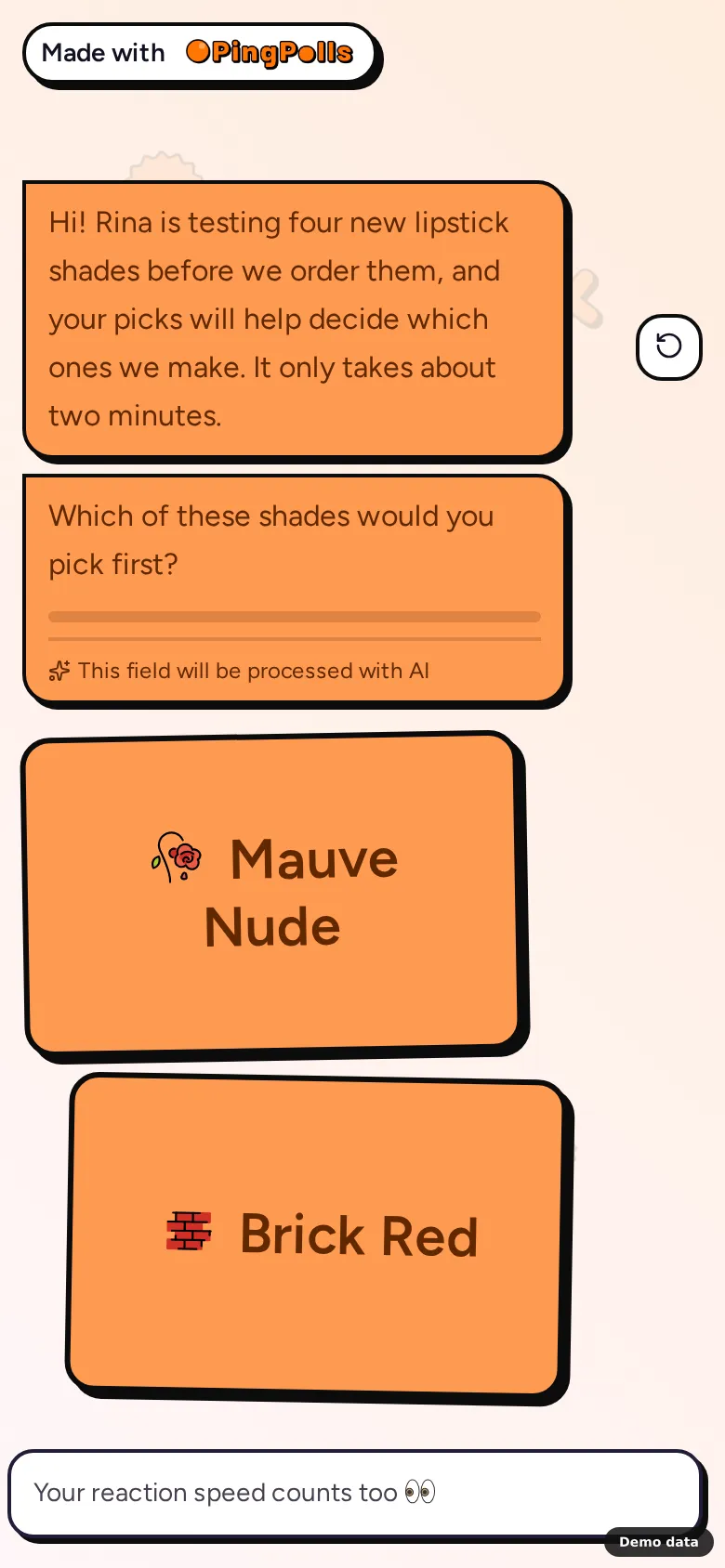
A Framer landing page is a natural home for a "coming soon" launch, and it gets more useful when visitors can vote on the variants you're about to produce right where they read about them. Embedding your PingPolls form there means people who arrive from your Instagram bio see your product photos and the this-or-that picks on one page, and you get a ranking before you pay the factory's minimum order.
This guide shows you two ways to place a PingPolls form in Framer's Embed component, a link or the embed code. The Framer steps follow Framer's own help article on adding an iframe or embed script.
Before you start
Your form needs to be published, with its Embed channel switched on. Open the Sharing tab of the form overview, check the switch in the Embed card, and click Save sharing if you changed anything. An embed only loads while the saved Embed channel is on, and otherwise the page shows "This form is not available in this mode."
Option 1: Paste the no-code embed link
This is the quickest route, because it needs no code at all.
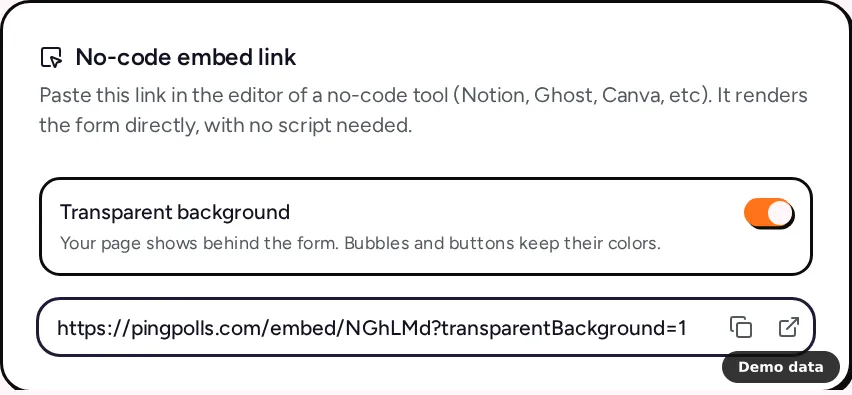
- In the PingPolls Sharing tab, find the No-code embed link card.
- Leave Transparent background on if you want your Framer page to show behind the form (bubbles and buttons keep their colors). The switch only changes the copied link, so nothing is saved.
- Click Copy no-code embed link. The address looks like
https://pingpolls.com/embed/your-form-code?transparentBackground=1. - In Framer, open the Insert menu, search for Embed, and drag the Embed component onto the canvas.
- Enter the link you copied in the component.
- Give the component the height you want the form to have, then publish your Framer site.
Option 2: Paste the embed code
The embed code adds a script that sizes the form inside its container and helps on phones, because it tells the form how much of its frame an on-screen keyboard covers, so the answer field stays visible while visitors type.
- In the PingPolls Sharing tab, click Copy embed code in the Embed card.
- In Framer, add an Embed component from the Insert menu as in Option 1.
- Paste the code into the component's HTML section, which is where Framer's help says script tags go.
<script src="https://pingpolls.com/pingpolls.js" async></script>
<pingpolls-container formId="your-form-code" height="640"></pingpolls-container>
The height attribute sets the form's height in pixels, and the form takes the full width of the component. Embed your form lists the other embed options.
Make the form match your launch page
Your launch page already has a look, and the form should feel like part of it rather than a box dropped in from elsewhere. In the studio, open the Form Setup drawer and its Theme tab to set the color, font and style, which are free on every plan, and keep Transparent background on in the no-code link so your page's background shows through. Your own logo needs Pro or Teams. Customize your form covers every theme setting.
Check it on your phone
Visitors who tap the link in your Instagram bio are on a phone, so open the published page on yours and vote once yourself. If your form has a long-text question such as "What would make you buy this shade?", try answering by voice as well, because the embed code already gives the form permission to use the microphone.
Framer's help notes that some websites block embedding through HTTP headers. PingPolls allows its embed addresses to be framed, so if the form doesn't load, the usual cause is the Embed channel being off, and turning it on and clicking Save sharing fixes it.
What happens to the votes
Embedded answers arrive in the same form as answers from your PingPolls link, so the Results tab shows one ranking for everyone. Embedded visitors get a signed token tied to your Framer page's address instead of a cookie, which means the default of one response per browser still applies. To see how many visitors reached the form through the launch page compared with your Instagram link, compare the traffic sources in the Analytics tab.
Read Preference ranking to set up the this-or-that question itself, and How to test product variants before you pay the MOQ for the full variant test from build to factory.
Frequently asked questions
Do I need a paid PingPolls plan to embed on Framer?
No. The Embed channel works on every plan. On Pro and Teams, a team with its own branding can also hide the PingPolls logo, as Remove PingPolls branding explains.
Why does the embed say "This form is not available in this mode."?
The form's Embed channel is off, or it was switched on and never saved. Open the Sharing tab in PingPolls, turn on Embed and click Save sharing, then reload your Framer page. Keep in mind that turning off every channel archives the form, so leave at least the Embed channel on while the launch page is live.
Does the embed script set cookies on my Framer site?
No. The embed script never sets a cookie, and browsers cache it for an hour, so returning visitors don't download it again on every visit.
I edited the form. Do I need to update Framer?
No. Click Publish updates in the PingPolls studio and the embed shows the new version at the same address.