Elena runs research for a budgeting app, and every month the product team asks her the same question: would the people using the app recommend it to a friend? A Net Promoter Score answers that with one number she can report and compare over time, so PingPolls has a question built for it. The respondent picks a number from 0 to 10, and the Results tab turns the answers into your NPS without a spreadsheet.
How NPS is calculated
Every answer falls into one of three groups. People who pick 9 or 10 are promoters, 7 and 8 are passives, and 0 to 6 are detractors. Your NPS is the share of promoters minus the share of detractors, so it runs from -100 to +100.
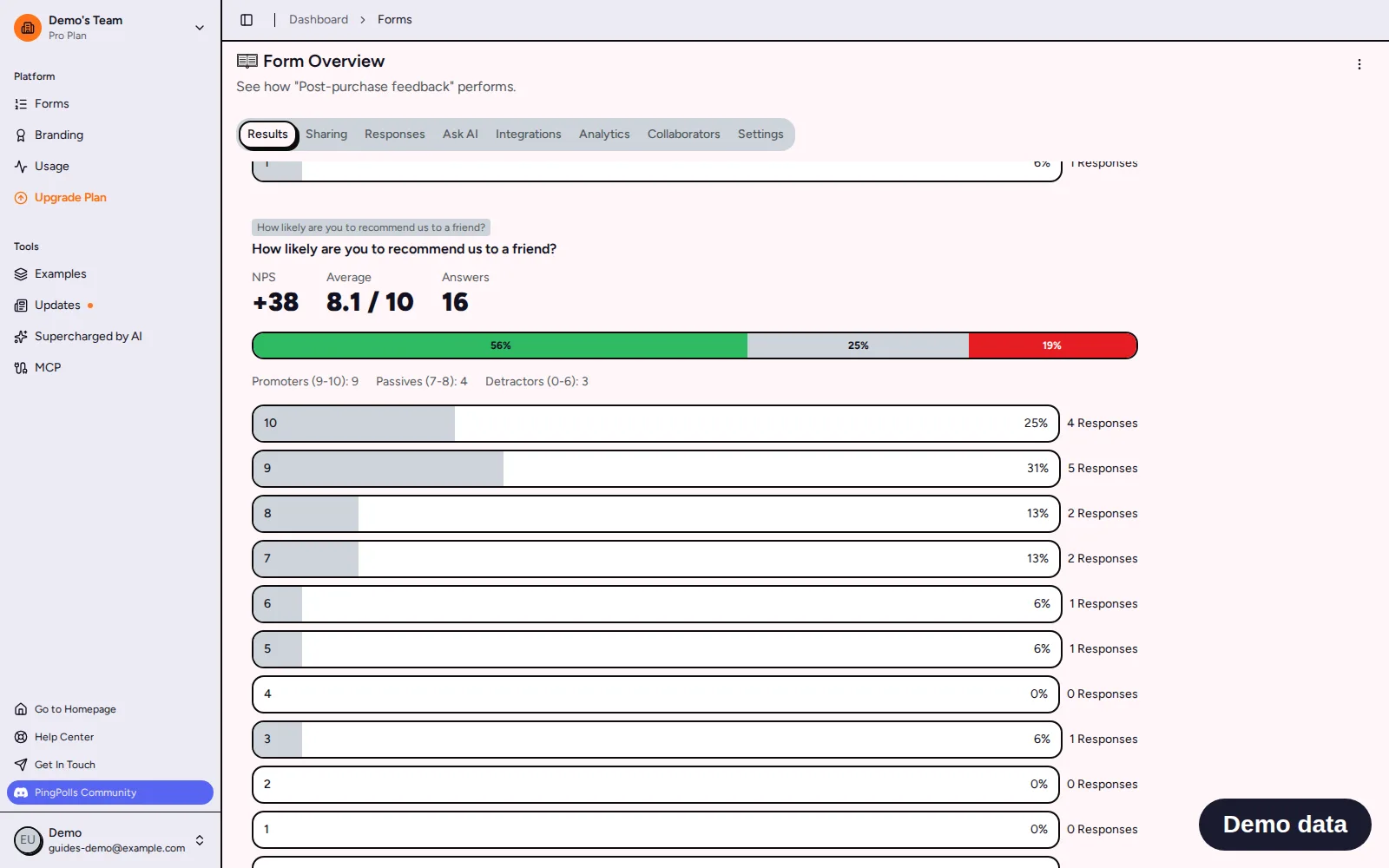
That means passives count toward the total but not toward the score. When 9 of 16 people are promoters and 3 are detractors, the NPS is 56% minus 19%, which PingPolls shows as +38.
How to add an NPS question
- Open your form in the studio and click Add block.
- Under Questions, pick Net Promoter Score.
- Write the question in the usual form, "How likely are you to recommend [your product] to a friend or colleague?".
- In Question settings, check the words under 0 and 10. They start as "Not at all likely" and "Extremely likely", and you can change them, for example into the language of your form.
- Add a Long text question right after it, such as "What is the main reason for your score?", because the reason is what the product team acts on.
The scale always runs from 0 to 10, since that is what makes the score comparable with other NPS surveys.
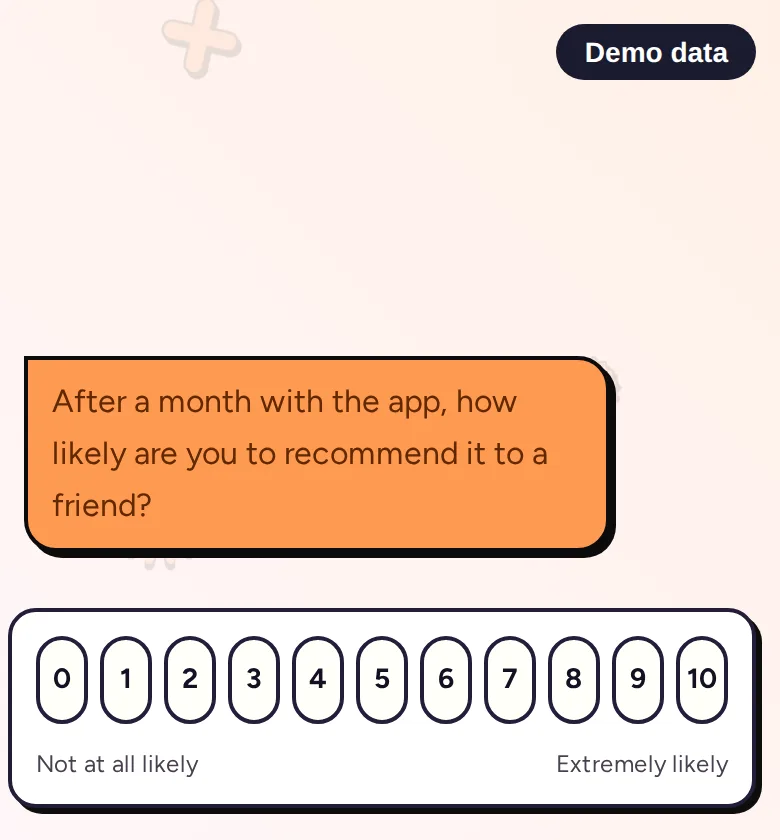
Respondents tap a number and it is sent at once, and the chat shows their answer as "9 / 10". On a keyboard they can move with the arrow keys and press Enter.
Follow up by group
Because an NPS answer is a number, conditional logic can route each group to its own next step. Elena sends answers of at least 9 to a section that asks what users like most, and answers of 6 or less to a section that asks what is missing, so each group only sees the follow-up that fits them. A result page can thank promoters and invite them to leave a review.
Read your NPS
The Results tab shows the NPS question with its score, the average, how many people answered and a bar split into promoters, passives and detractors, with the count of each and a bar for every score from 10 down. It recalculates for the date range you pick, so you can compare this month with the last.
In the Responses tab each answer reads "9 / 10" with its group next to it, and you can filter the column by an exact score. The CSV export has the plain number in the NPS column, ready for your own report.
Frequently asked questions
Can I change the scale to 1 to 5?
Not on an NPS question, because the score only works on 0 to 10. For a shorter scale, switch the question to an opinion scale with the Answer type selector, and your question and end labels stay.
Does Ask AI calculate my NPS?
No. The Results tab calculates the score. Ask AI is better for reading the reasons people wrote in the follow-up question.
Can I see NPS for one group of respondents?
Filter the Responses tab by an answer to another question, then export the CSV, and the NPS column has the scores for just those responses.
