When a buyer opens the QR code in the box, the first thing Bagas wants to know is how the order went, and he wants it as one score he can track from week to week. A text box gives him sentences he has to read one by one, and a list of choices like "Good" or "Bad" is hard to average. That's why PingPolls has two questions made for a single score: Rating, where the respondent taps a star or a heart, and Opinion scale, where they pick a number between your own words at each end.
Rating or opinion scale?
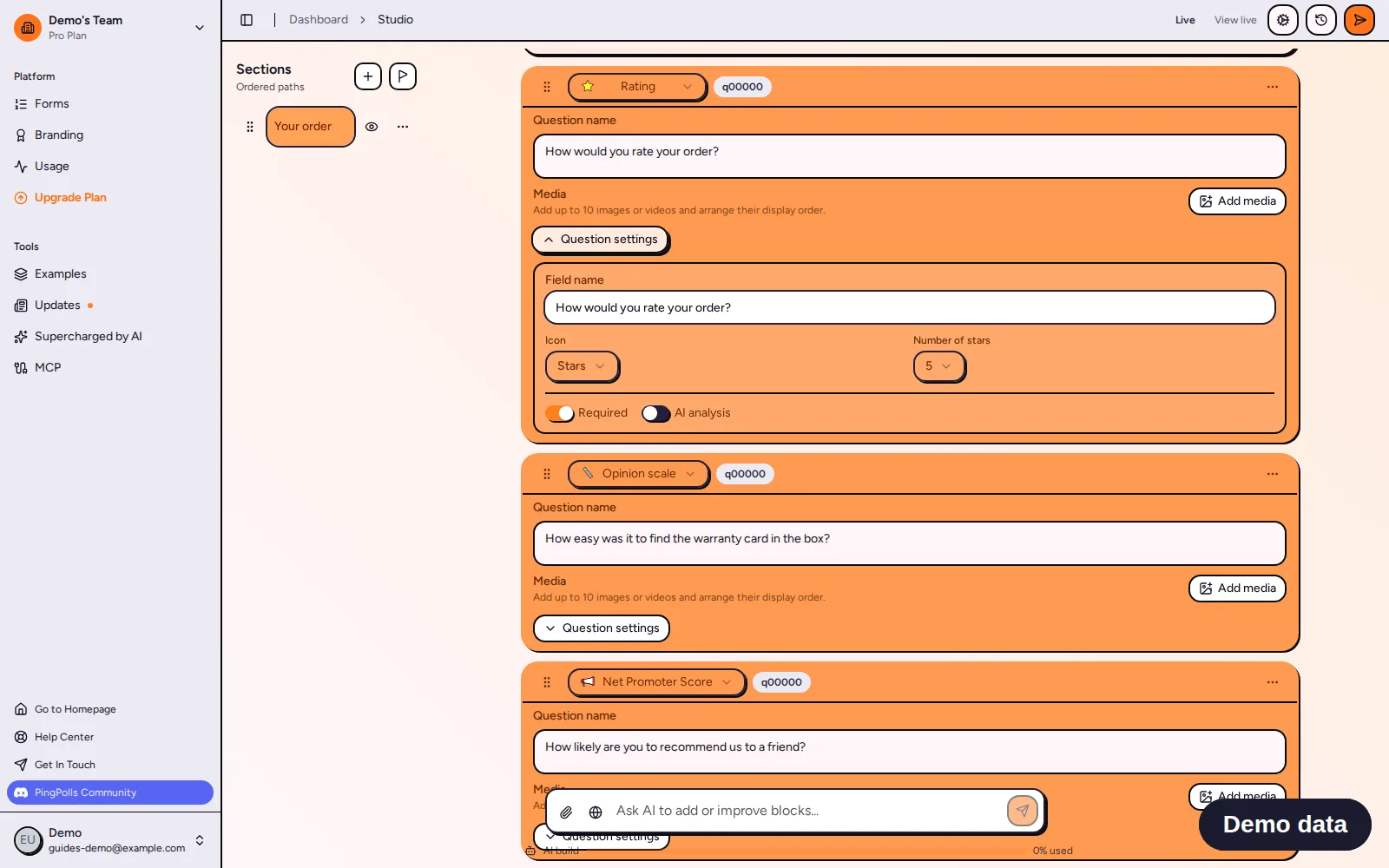
Use Rating for one overall score that everyone already understands, such as "How would you rate your order?". It shows 3 to 10 stars or hearts in a row, 5 by default, and the answer is the number of stars the respondent picked.
Use an Opinion scale when the two ends need words, such as how easy something was or how much someone agrees with a statement. It numbers each step from 0 or 1 up to 10, 1 to 5 by default, and shows your words under the first and last number, so Bagas can ask how easy it was to find the warranty card from "Very hard" to "Very easy". That also makes it the question to use for Likert items in a questionnaire.
When you want to know how likely people are to recommend you, use Net Promoter Score instead, because its results group the answers the way NPS is calculated.
How to add a rating question
- Open your form in the studio and click Add block.
- Under Questions, pick Rating.
- Write your question, for example "How would you rate your order?".
- Click Question settings and choose the Icon (stars or hearts) and the Number of stars.
- Click Preview and tap a star to try it.
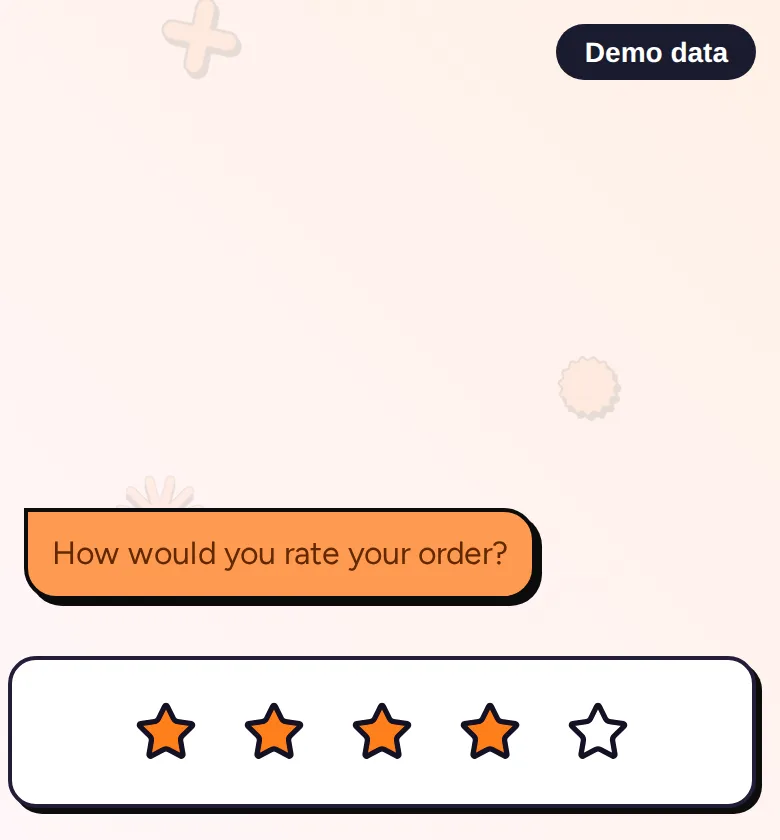
On a phone the stars sit in the answer box under the question, and every star up to the one under the finger lights up, so the respondent sees the score before they let go. A tap sends it at once, and the chat shows the answer as "4 / 5". With a keyboard, the arrow keys move between the stars, a number key jumps to that star and Enter sends it.
How to add an opinion scale
- Click Add block and pick Opinion scale.
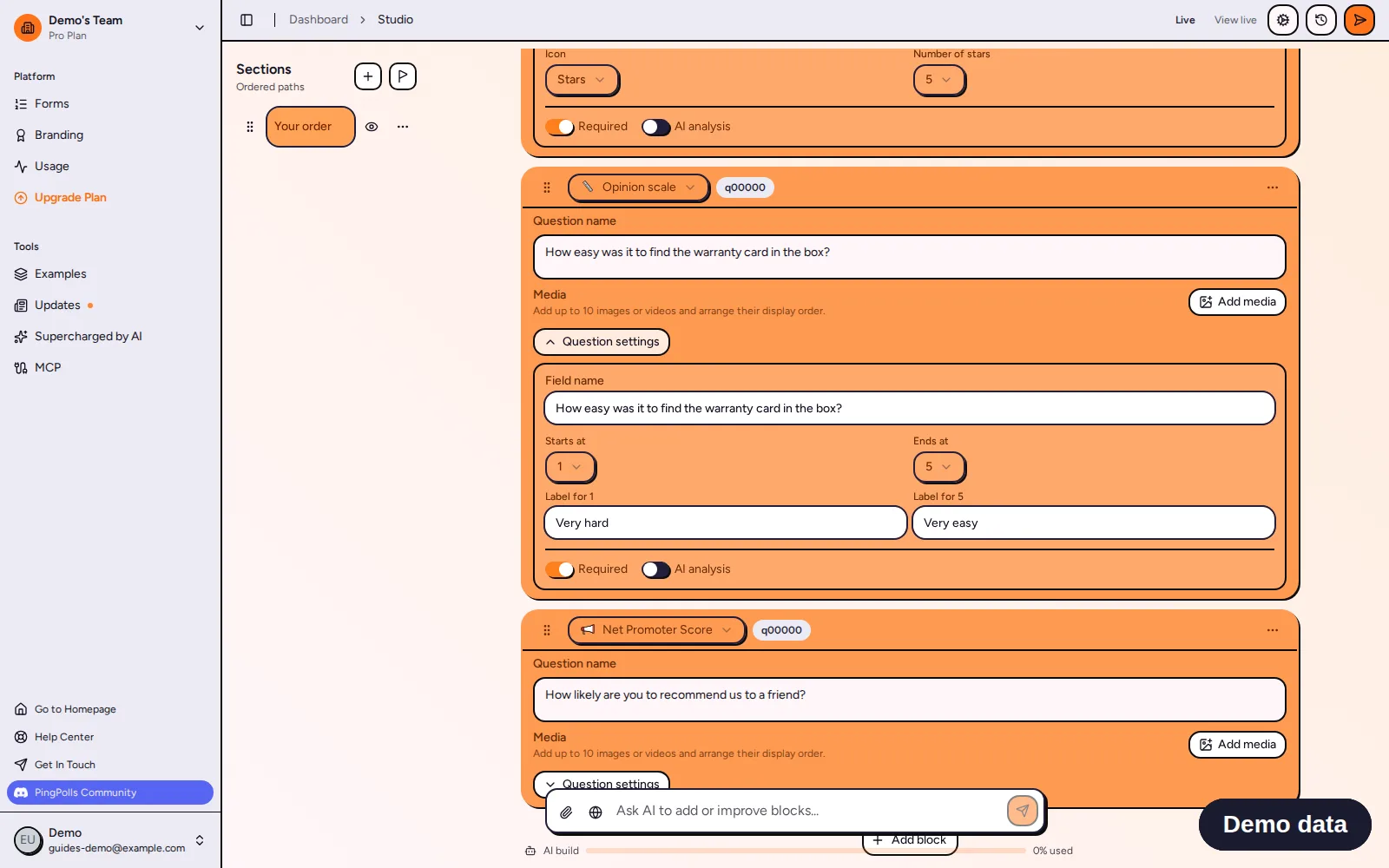
- Write your question, for example "How easy was it to find the warranty card in the box?".
- In Question settings, set where the scale Starts at (0 or 1) and where it Ends at (up to 10).
- Type the words for each end, up to 40 characters each, such as "Very hard" and "Very easy". Leave a label empty when the numbers speak for themselves.
You can switch a question between rating, opinion scale and Net Promoter Score with the Answer type selector, and your question text and end labels stay.
Use the score in logic
Rating and opinion scale answers are numbers, so conditional logic can compare them with greater than, less than, at least, at most or equals. Bagas sends everyone who rates their order 2 stars or fewer to a section that asks what went wrong and offers to follow up on WhatsApp, while happy buyers go straight to the thank-you page.
Read the results
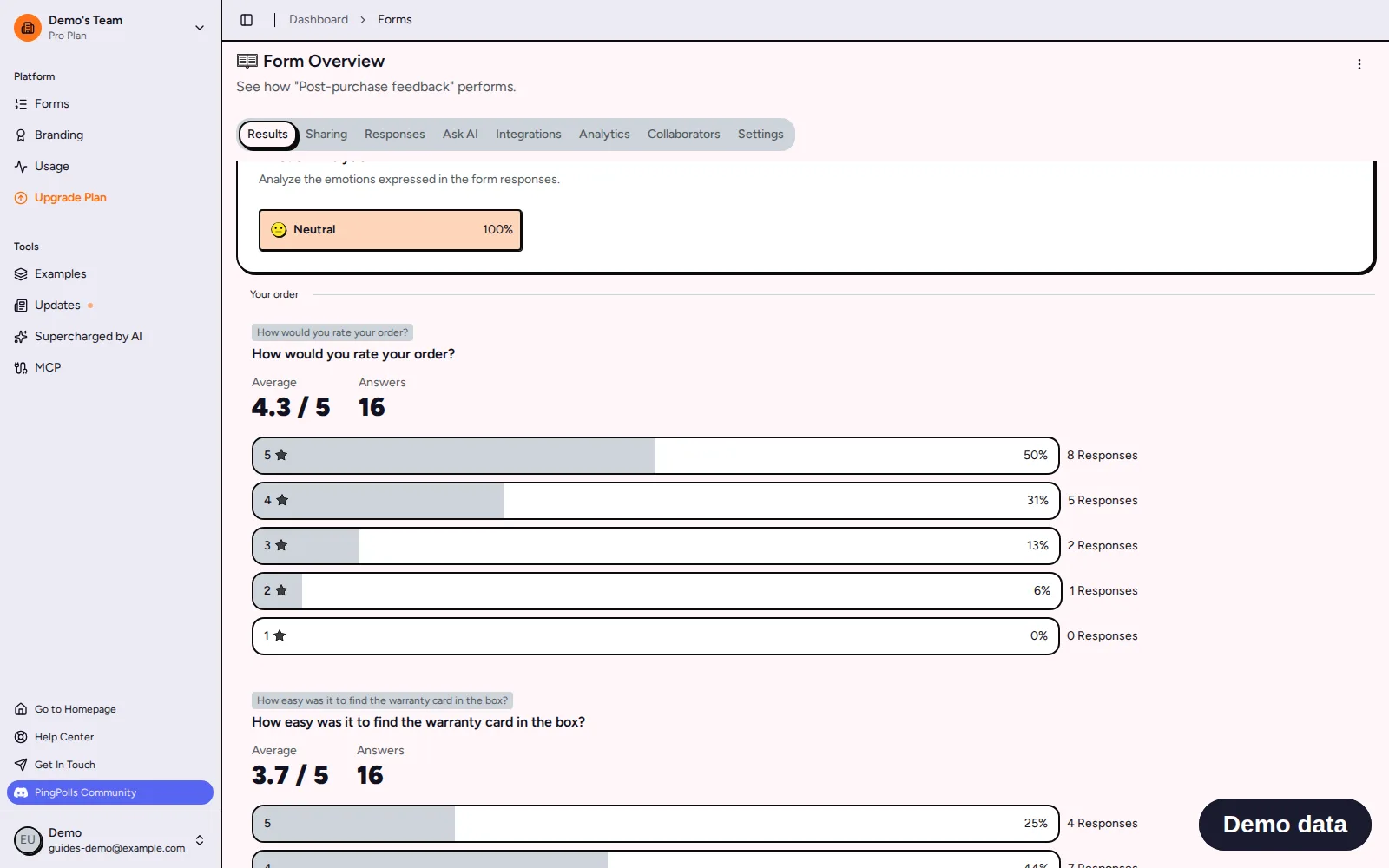
In the Results tab each rating and opinion scale question shows its average, such as "4.3 / 5", how many people answered, and a bar for every value from the highest down, for the date range you pick. In the Responses tab each answer reads "4 / 5", and the CSV export has the plain number, so you can average it again in a spreadsheet.
Frequently asked questions
Can respondents give half a star?
No. A rating and an opinion scale take whole numbers only, both in the form and when the response is saved.
Can I prefill a score?
Yes. A prefill link can set a rating or opinion scale answer, as long as it is a whole number on that question's scale.
Do rating answers get a Certiscore™ signal?
No. Certiscore™ times the this-or-that picks in preference ranking and sentiment cards, so it doesn't apply to a single score.
