Rina sells a lipstick line on Shopee and TikTok Shop, and before she pays the factory's minimum order for a new shade, she promotes a variant test form to her followers with a small Instagram ad. What she needs to know afterwards is which ad brought people who finished the form, not just people who tapped the link. Adding her Meta Pixel to the form gives her exactly that, because the pixel records a Lead each time someone completes a response, and Meta can match those leads back to her ads.
What gets tracked
The tracking script runs in the respondent's browser when they open your published form, and it reports three moments:
| Moment | Meta Pixel event | Google Analytics event |
|---|---|---|
| The form is opened | PageView |
page_view |
| The respondent starts answering | FormStart (custom event) |
form_start |
| The response is submitted | Lead |
generate_lead |
Each event carries the form's ID, so you can tell forms apart in one pixel or property. Meta's automatic events are switched off, which means the pixel only records these three moments and doesn't read what people type.
What stays private
Answers never reach Meta or Google. We also send the form's address without its query string, so prefill values, result links and UTM tags in the link stay out of both tools, and the referrer is left empty. Keep that in mind when you plan reporting, because campaign details you put in the form link won't show up in these events. Your tags aren't lost, though, because our own form analytics record the utm_source of each visit as its traffic source.
How to add a Meta Pixel
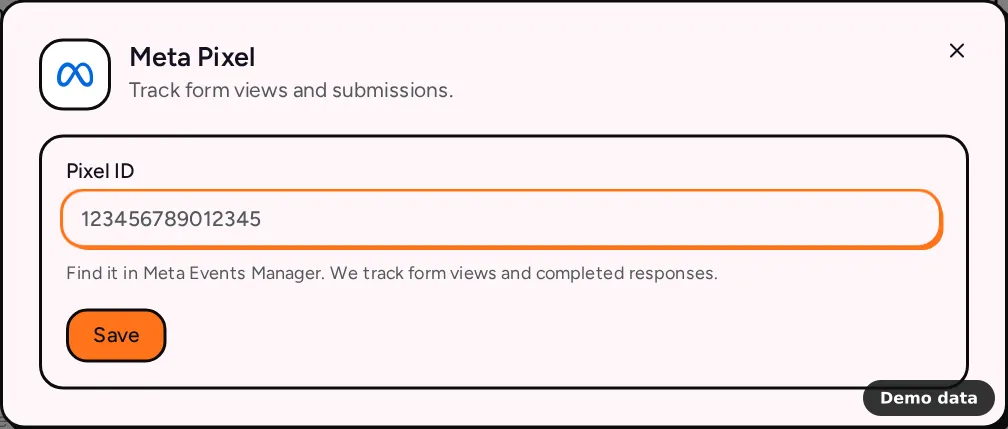
- Copy your Pixel ID from Meta Events Manager. It contains only numbers.
- Open your form in PingPolls and go to the Integrations tab.
- Under Tracking, click Meta Pixel.
- Paste the ID into Pixel ID and click Save.
How to add Google Analytics
- In Google Analytics, go to Admin, then Data streams, and copy the measurement ID of your web stream. It looks like
G-XXXXXXXXXX. - Open your form in PingPolls and go to the Integrations tab.
- Under Tracking, click Google Analytics.
- Paste the ID into Measurement ID and click Save.
Both can run on the same form at once, so you can add your pixel and your GA4 property side by side. The form page picks up a new or changed ID right after you save.
Limits and plan notes
- Meta Pixel and Google Analytics need the Pro or Teams plan. On Free their tiles show a Pro badge, and connecting fails with "This integration provider requires a paid plan". See plans and pricing for everything else each plan adds.
- If a paid plan lapses, the tracking scripts stop loading on your form.
- A form holds one Meta Pixel and one Google Analytics connection.
- Tracking happens in the browser, so there's no delivery log for it and nothing to replay. If a respondent's browser blocks the script, that visit isn't counted.
Frequently asked questions
Does the pixel work when my form is embedded or shared by QR code?
The script loads wherever your published form opens in a browser. See share your form and embed your form for the ways people reach it.
Can I use Google Tag Manager instead?
The integration takes a GA4 measurement ID, not a Tag Manager container. It loads Google's own gtag script for that ID.
Will my ads report the respondent's answers?
No. Only the three events above are sent, with the form ID, so what respondents tell you stays between you and them. If you want answers in another tool, the integrations overview lists the destinations that receive them.
